

Select first, then ask
Select the shapes on the slide before you type. The composer shows a badge for the selection (its tooltip reads “Click to reference in message”), and the agent works on those shapes rather than guessing which part of the slide you meant. Without a selection, “make the boxes bigger” on a slide with three sets of boxes is a coin flip. With a selection it is unambiguous.Ask about the deck first
Ask a question about the presentation that is open and Pretty hands it to a subagent built for that. You get a row labelled Searching your deck (this may take a while). It reads the slides — text, titles, tables and visuals — and changes nothing.What to ask for
Restyling
Restyling
Rewriting
Rewriting
Re-layout
Re-layout
Consistency across slides
Consistency across slides
The step rows during an edit
Three rows do the work. Knowing what each means tells you where a run went wrong.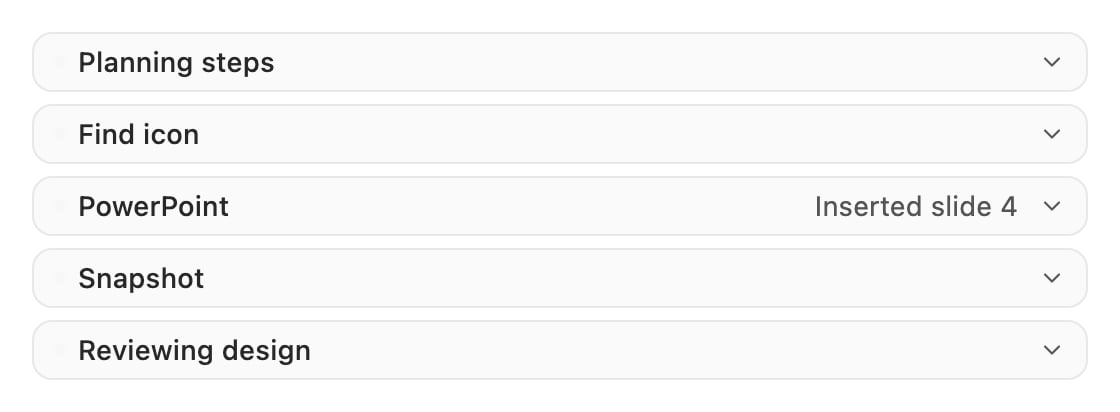
The write-check-critique cycle, as it appears in the pane.
Snapshot and Reviewing design are Pretty checking itself, not extra work you asked for. On a
slide that took several attempts you will see the cycle repeat.
Undoing a change
Two routes back:- PowerPoint’s own undo, since everything Pretty inserts is native.
- Revert slide? in the chat, which re-inserts the previous version of a slide Pretty changed. It confirms first: “This will re-insert the previous version of slide … into your presentation.”
Keep your view where you put it
By default the pane jumps to each slide the agent touches. On a long edit across many slides that is motion sickness. Turn off Follow the agent’s edits in Settings → Preferences: “Jump to each slide the agent inserts. Off keeps your view where it is.” See Preferences. You can keep working in PowerPoint while a chat runs. Select shapes, type into placeholders, use the ribbon. Pretty picks up whatever you have selected when you send your next message.When an edit does not land
- Nothing changed. Check the PowerPoint row. A rolled-back write leaves the slide untouched by design; expand the row for the error.
- It changed the wrong thing. Select the shapes and say it again. A selection beats a description.
- It keeps going in circles. Stop the run with Stop generation and give a narrower instruction. One change per message works better than five.
- Text is cut off. Say so. Pretty can shrink type, reflow, or cut copy, but it needs to know which you prefer.