

Open the deck you want to work in
Pretty builds into the presentation you already have open, and inherits its master. Start from your firm’s template rather than a blank deck, so the output comes out on brand.Ask for a slide
Click pretty on the Home ribbon, then type into the composer at the bottom of the Chat tab. The placeholder reads “Ask about your presentation…”. Be concrete about the content and let Pretty decide the layout:Watch what it is doing
Each step shows up as a row with a plain-language label. Expand a row to see the detail behind it.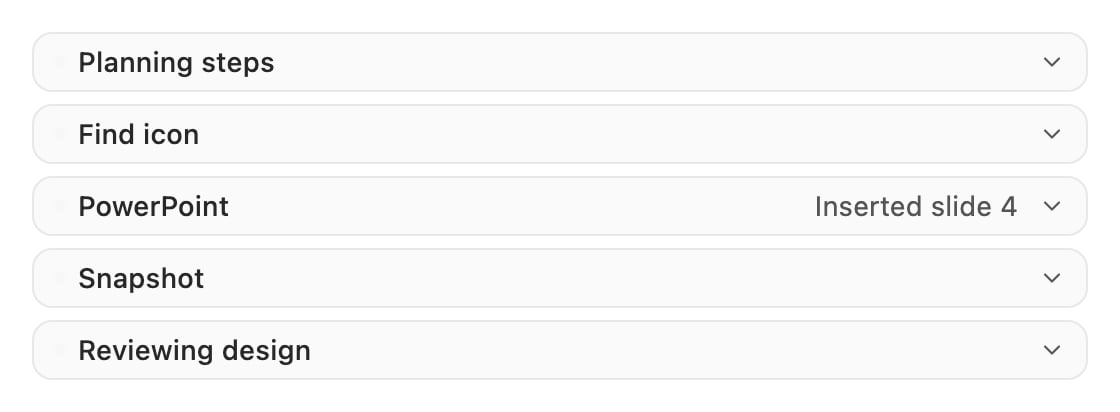
A turn in the pane. Rows arrive as the work happens.
The full list is in the tool reference.
Refine it
The slide is now normal PowerPoint. You can edit it by hand, or keep going in chat:Add an asset
Switch to the Assets tab at the bottom of the pane to search icons, company logos, editable maps and photography. Every result can go straight onto the slide, or into the chat so the agent places it for you. Pretty recolours all of it to your master.Save it as a component
To reuse a block later, select those shapes, open the Components tab, and click Add component. Pretty captures a preview and drafts a name and description for you. Keep it private, or share it with your organization.What to try next
Draft a whole deck
Give Pretty a brief and let it plan and build every slide.
Screenshot to slide
Paste a screenshot or a photo of a sketch and get native shapes.
Ground it in your documents
Attach reports and transcripts so every claim comes from your material.
Reuse approved slides
Upload a deck as a slide pool and pull layouts from it.