

Search icons… to search the whole library at once.
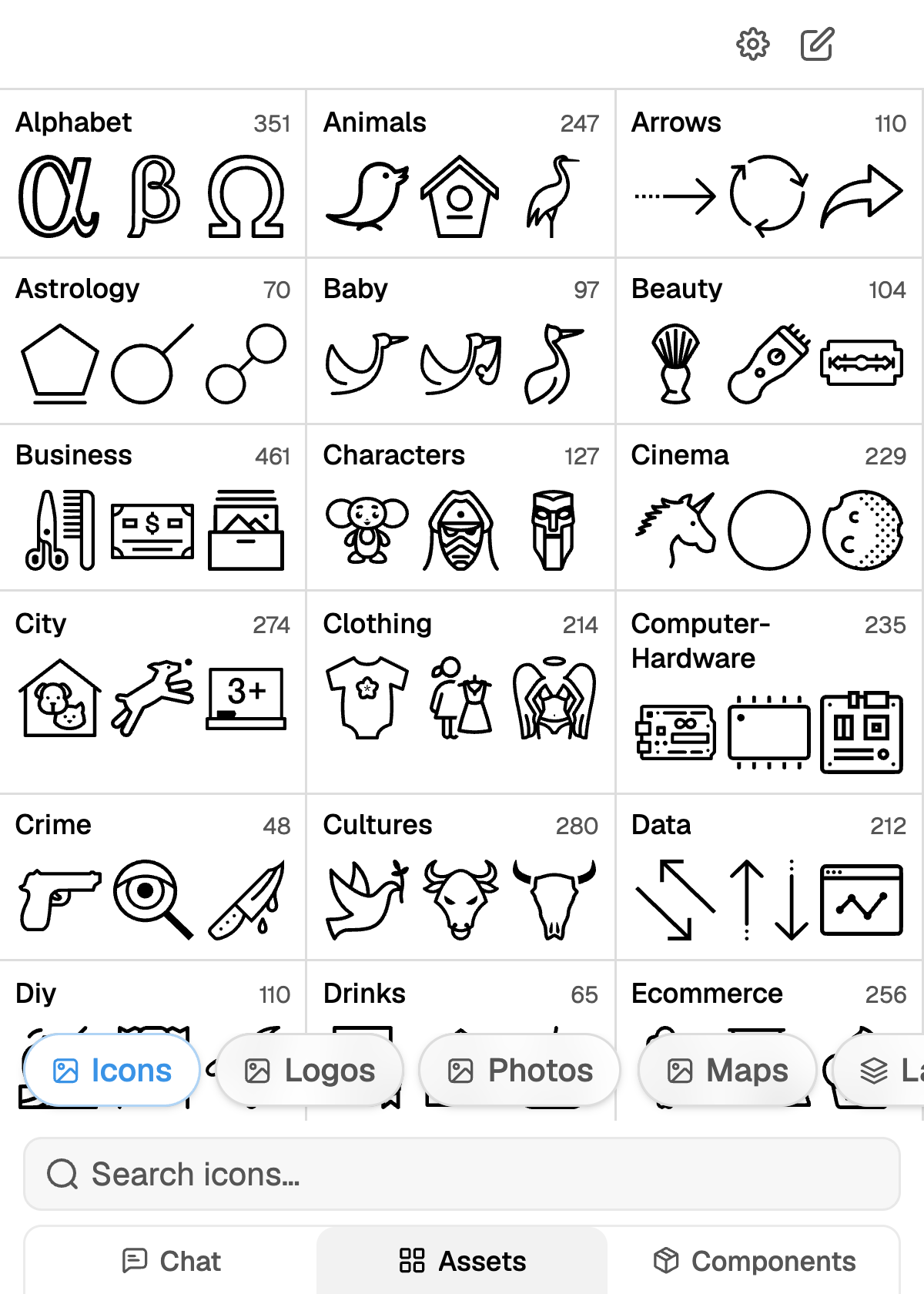
The library opens on categories, each with its icon count.
Search by meaning, not by filename
The search is semantic. It matches the concept you describe against the icon index, so you do not have to guess what a designer named the file.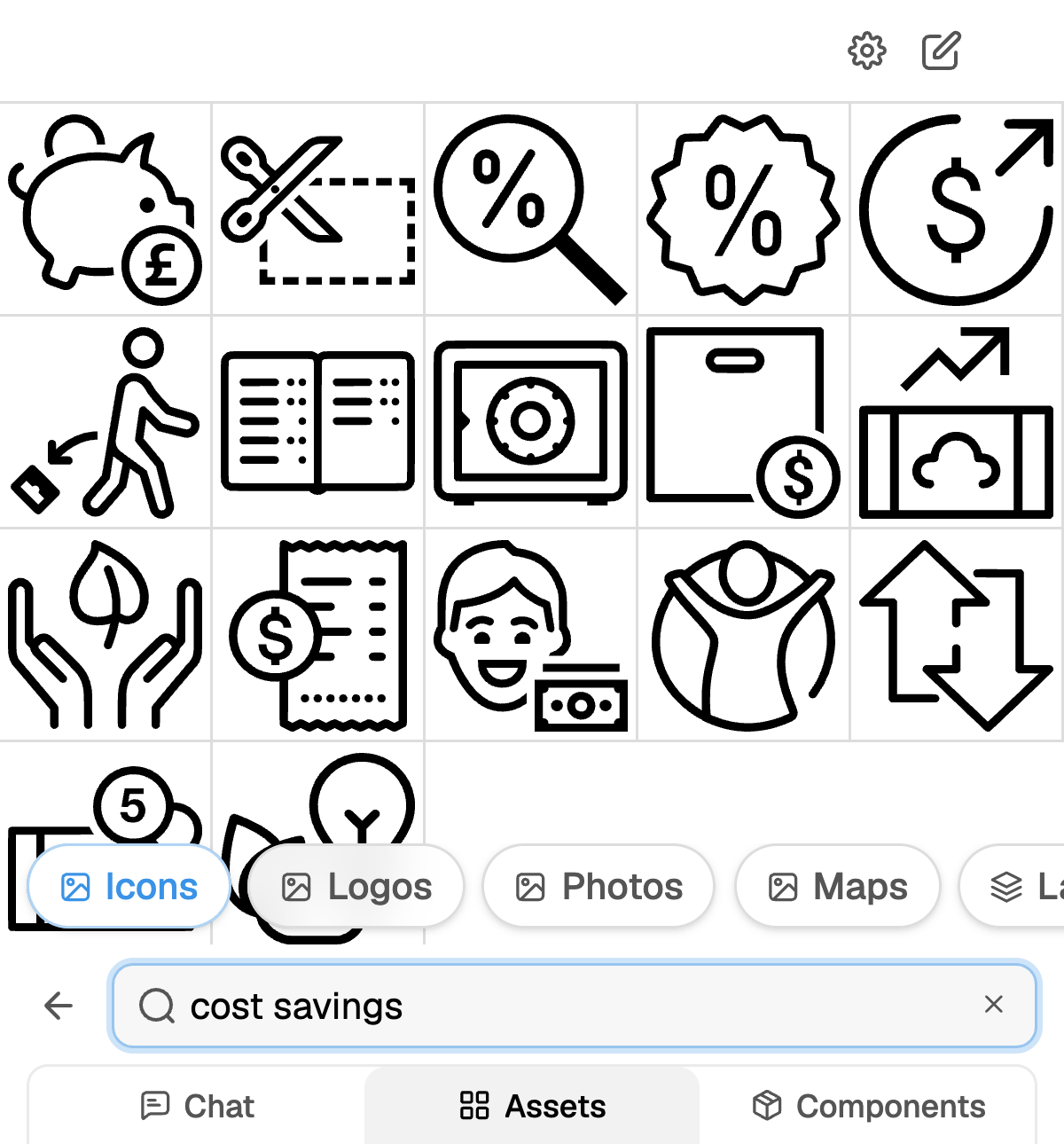
cost savings — no icon here is filed under that name.
Keep the term short, one to three words. Two focused searches beat one long sentence, because each
term gets its own similarity search.
Inserting
Each result has two actions:- Add to chat hands the icon to the agent for your next message, and returns you to Chat.
- Add to presentation drops it on the current slide. Insert several and they arrange in a grid.
Asking the agent instead
You do not have to open the tab. Ask in chat and the agent runs a Find icon step itself:Add icons to each of the three columns: one for onboarding, one for activation, one for renewal.The agent searches each concept separately, so distinct ideas get distinct icons rather than three variants of the same glyph. It recolours what it finds before insertion, the same as the picker does.
The icon library holds generic iconography only. Company marks live in
Logos.
Keeping a deck consistent
Pick one style and stay with it
Pick one style and stay with it
Outline, solid and duotone do not mix well on the same slide, and rarely across a deck. Decide
early, then filter your eye to that style while browsing. If the agent has already placed a set,
say “keep the same icon style as slide 4” when you ask for more.
One idea per icon
One idea per icon
An icon that tries to carry two concepts reads as neither. Split it: two icons, or one icon and
a label.
Let the master do the colouring
Let the master do the colouring
Icons arrive in your theme colours. Hand-picking a hex afterwards is what breaks a deck when the
template changes. If you need emphasis, use a theme accent rather than a custom colour.
Size in the grid, not by eye
Size in the grid, not by eye
Inserted icons are already snapped to the deck grid. When you resize, hold the aspect ratio and
match the neighbouring icons rather than the text next to them.