Organised by what you are seeing.

Installing and opening

The button only appears on a fresh start of PowerPoint. Look under Home → Add-ins → My Add-ins for Pretty, open it from there, then restart. If it is not listed at all, the install did not complete. Redo it from Install the add-in.
Many organizations disable self-service add-ins, and nothing you do in PowerPoint works around that. Ask your Microsoft 365 admin to deploy Pretty centrally from Settings → Integrated apps. The details they need are under Deploying centrally for a whole organization on Install the add-in.
The pane is a web view, so a blank pane means it could not load its own assets. Close it and reopen it from the pretty button, then restart PowerPoint. If it survives a restart, your network is blocking addin.make-pretty.com or api.make-pretty.com. Ask IT to allow both.
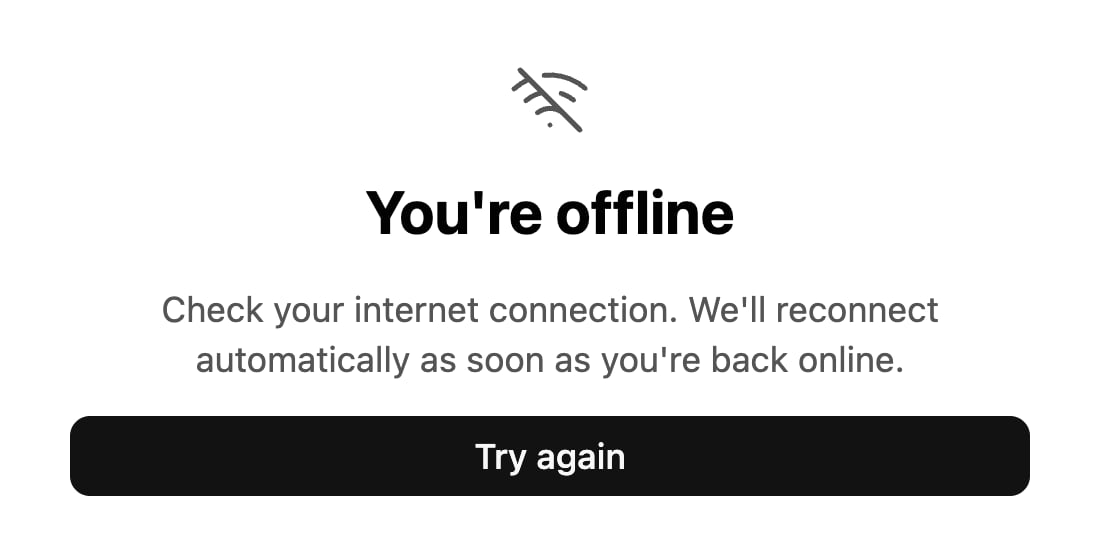
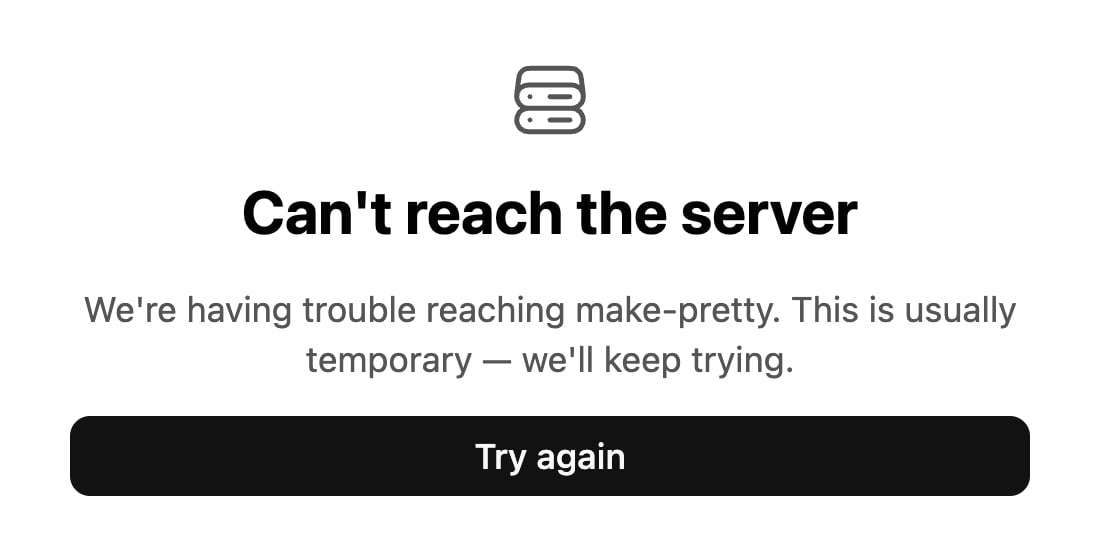
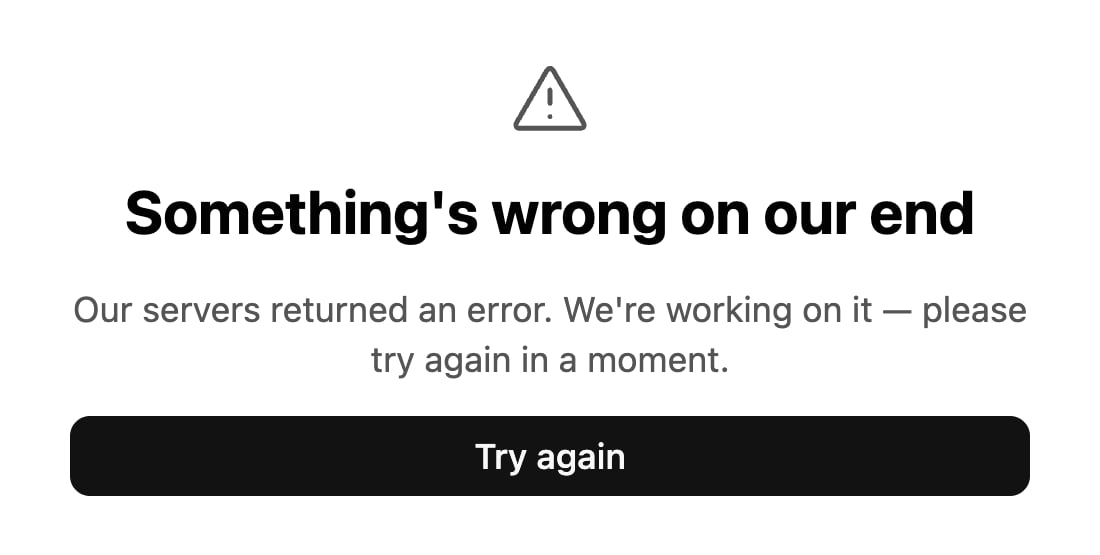
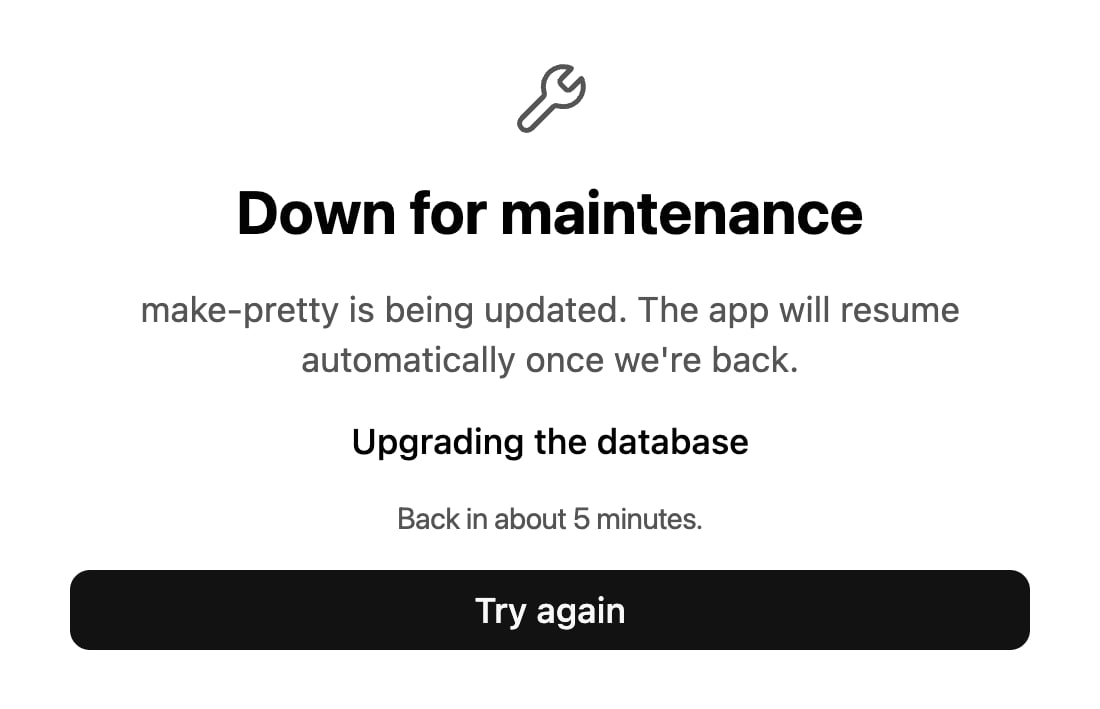
The pane shows a status screen when it cannot reach Pretty. None of these lose work, because your chats live on the server, not in the pane.
The four screens, each naming its cause rather than failing silently:
Connection screen reading You're offline
Connection screen reading Can't reach the server
Connection screen reading Something's wrong on our end
Connection screen reading Down for maintenance

Signing in

The add-in signs you in by opening a browser tab and waiting for you to approve it there. Most failures are that handoff going wrong.
Usually because you approved in a browser already signed in as someone else. Invitations are matched on the exact address they were sent to, so this also produces “Wrong account” on an invitation link. Use Settings → Account → Sign out, then start again from the task pane and approve in a browser profile signed in as the right person.
Pretty is built around a shared workspace, and an account without one cannot open chats. Ask an admin on your team to invite you from Settings → Members → Invite a teammate, sent to the address you signed in with. See Members and roles.

While the agent works

A turn is already running there. Sending anyway holds your message as “Queued”. Use Send now when the turn ends, or Dismiss to drop it. If you need an answer now, open a New Chat; chats run in parallel.
A loop guard fired. The agent tried the same thing repeatedly and got nowhere, so Pretty stopped it rather than spend your budget on it. Rephrase more concretely: name the slide, name the shapes, split a big ask in two. A request that loops is usually ambiguous, not hard.
Both come from the model provider, not from Pretty. Rate limiting means too many requests too quickly. Wait a moment and send again. Quota means the account behind the key is out of credit, so check its plan and billing, or switch key in Model providers.
The conversation carries more than one turn can hold, usually from many steps or large attachments, and compaction has nothing left to reclaim. Start a New Chat and re-attach only what still matters. See Context and compaction.
“Please contact an administrator to raise it.” Your own monthly allowance is spent (a colleague’s usage does not affect it), and new requests are paused until the limit is raised or the month rolls over on the 1st. Check Settings → Usage for the figure, then ask your workspace owner or admin. See Usage and limits.
The workspace is set to bring-your-own-key and none has been added, so nobody can chat until one is. An admin adds it in Model providers.
The configured key is invalid, expired, or has no access to the model being called. An admin should re-check it and confirm it works for the selected provider and region.
Your workspace routes through a self-hosted proxy and this chat’s model is not in the proxy’s model list. Pick a different one from Select model, or ask whoever runs the proxy to add it. See Choosing a model.

Results on the slide

The PowerPoint step rolls back when it fails, so a failed write leaves the slide exactly as it was, which looks the same as nothing happening. Expand the PowerPoint row: if it errored, use Copy error, then retry with a narrower ask or send it to support. If it succeeded, click a slide line under it to jump to the change.
Follow the agent’s edits is on, so your view moves to every slide as it is inserted. Turn it off in Settings → Preferences. The slides are still written, your view just stops chasing them. See Preferences.
Logo search matches on company name and a vision model chooses among candidates, so ambiguous names resolve to the wrong brand or the wrong variant. Select the logo on the slide (the Switch Logo tab appears) and swap it in place, or ask again with the variant spelled out: “the wordmark, not the symbol”. See Logos.
Faces have different metrics, so text sized for one can spill in another. It also happens when a brand font is removed, because decks fall back to a default face on their next load and may reflow. Ask Pretty to fix the overflow on that slide, and upload the missing face in Settings → Fonts. See Brand fonts.

Still stuck

Email support@make-pretty.com. Support lists what to include so we can reproduce it on the first try.