

- recolour a single region without touching its neighbours,
- shade a set of regions by a metric and build a real legend from them,
- delete, nudge or relabel one region,
- hand the deck to someone who has never used Pretty and let them edit it in plain PowerPoint.
Finding a map
Open the Assets tab and pick Maps. The library opens on regions; drill into one, or type intoSearch maps….
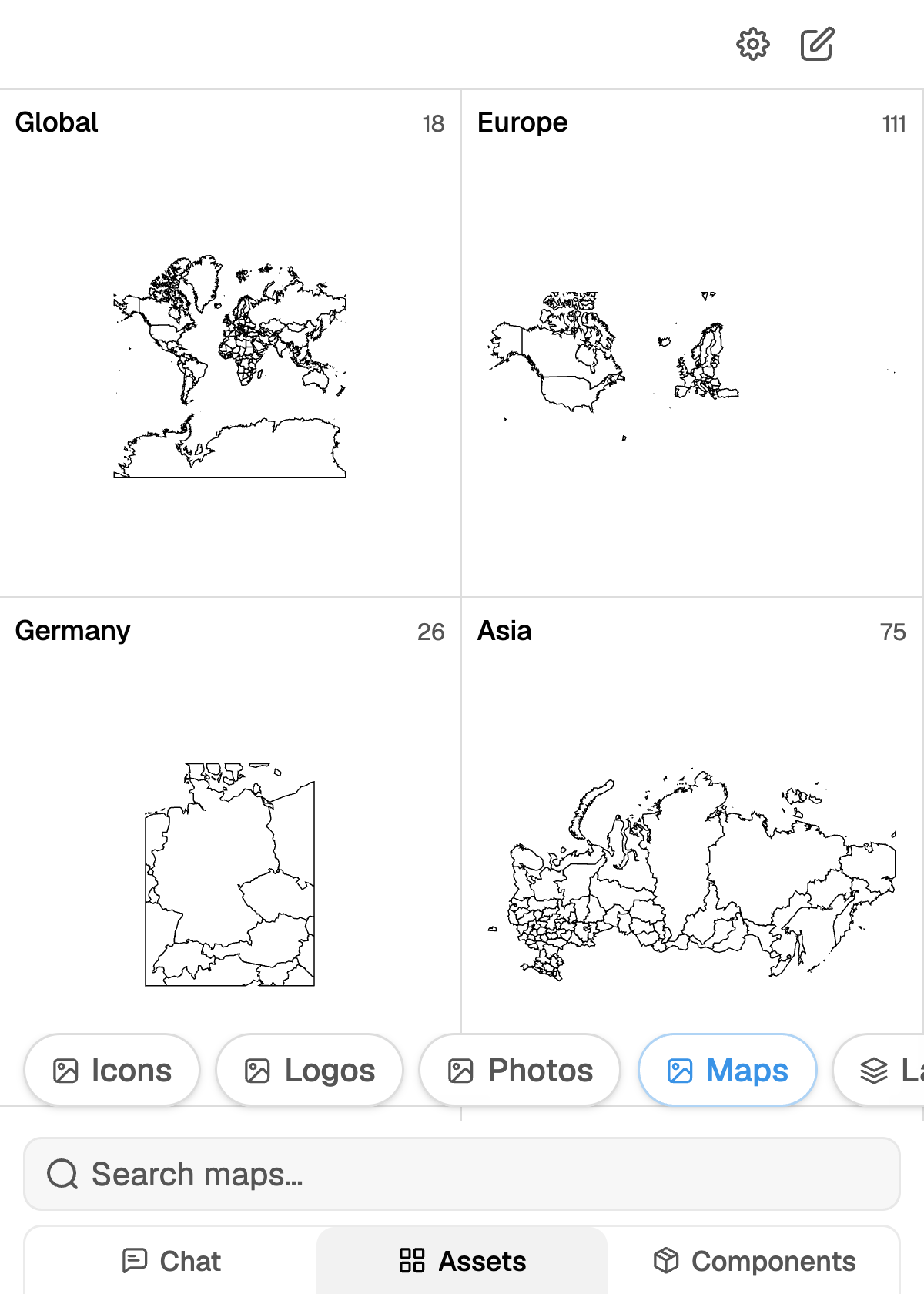
The library opens on regions, each with the number of presets inside it.
Each result carries a short description and roughly how many regions it contains, which is usually
the fastest way to tell two similar presets apart.
You can also just ask in chat. The agent runs a Find map step, ranks the presets and inserts the
one that fits your slide. The shapes it places are the same editable freeforms.
Map settings
Open Map settings from the picker header. The panel is titled Map defaults (“Applied to every map you insert”), so what you set here carries to the next map, and the one after that.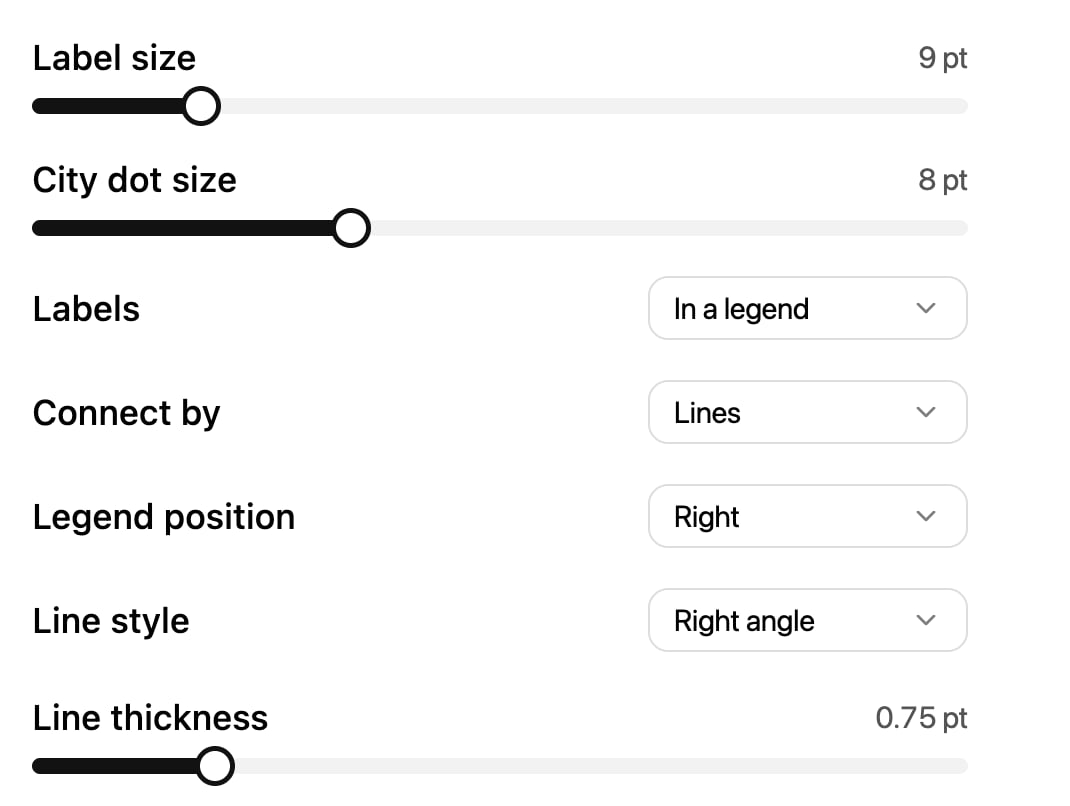
Map defaults: label and dot size, where labels sit, and how a legend ties back to the map.
Open the same panel from inside a map you are configuring and it reads
“Only this map — your defaults stay unchanged”. Use that when one slide needs a bigger legend
than the rest of the deck.
Choose cities
Picking a map opens the Choose cities step before anything lands on the slide.1
Search
Type into
Search cities.... Each row shows the city, its country and its population, so you
can tell one Springfield from the other.2
Select
Tick as many as you need. The header keeps a running count, and the list loads more as you
scroll.
3
Insert
The button reads
Insert ({{count}}) with the number you have ticked. Insert with none selected
to get the region shapes on their own.Recipes
Shade regions by a metric
Shade regions by a metric
Insert the admin-level map for the country (
germany states, us states) with no cities.
Then click a region and set its fill. Because every region is a separate shape, a five-step
colour scale is five fills, and the legend is five rectangles with the same fills. Or ask the
agent to do it in one go: “shade the states by the revenue in this table, darkest for the
highest”.Plot office locations with a numbered legend
Plot office locations with a numbered legend
Set Labels to In a legend, Connect by to Numbers, and Legend position to
Right. Then pick your offices in Choose cities. Each dot gets a number and the legend
lists them in order, which keeps a crowded map readable where on-map labels cannot.
A few cities on a clean country map
A few cities on a clean country map
Leave Labels on On the map, keep City dot size small, and pick three or four cities.
Where a label would collide with its dot, a leader line appears. Set Line style to
Right angle for a technical look, Straight for a lighter one.
A market-entry bloc slide
A market-entry bloc slide
Search the bloc directly (
european union, nato) rather than assembling countries by hand.
Then recolour the two or three member states you are actually talking about and leave the rest
in a muted theme tone.