

The five libraries
Pick a library from the row at the top of the tab. The one you used last is remembered, so the tab
reopens where you left it.
Searching
Each library has its own search box:Search icons…, Search logos…,
Search Unsplash photos…, Search maps…, and Search decks… / Search slides… for layouts.
Some libraries open on categories rather than results: Icons shows icon categories, Maps
shows regions, and Layouts shows your pools. Type to search across the whole library instead.
- Back returns from a category, a pool or a detail view to the level above.
- Clear search empties the box and puts the categories back.
A search term belongs to the library you typed it in. Switching from Maps to Icons does
not carry
germany across with it.Two ways to use a result
Add to chat
Hands the asset to the agent as a reference in your next message, and takes you back to the
Chat tab. Use this when the asset is an ingredient, as in “build a three-column layout
using this icon”, rather than something you want on the slide right now.
Add to presentation
Puts it straight onto the current slide. Several results inserted together arrange themselves
in a grid. Maps ask you to pick cities and settings first. See Maps.
Or just ask
The agent reaches the same libraries during a chat, so you do not have to browse at all. Ask for what you want in the message and watch the step rows:
Browsing is better when you want to see the options. Asking is better when the asset is one part of
a slide the agent is building anyway.
Photos
Photos lists results as soon as you open it; type intoSearch Unsplash photos… to search
license-cleared editorial photography and mockups — scenes, workplaces, product shots. Insert
several at once and they arrange in a grid, which is a quick way to lay out a mood board.
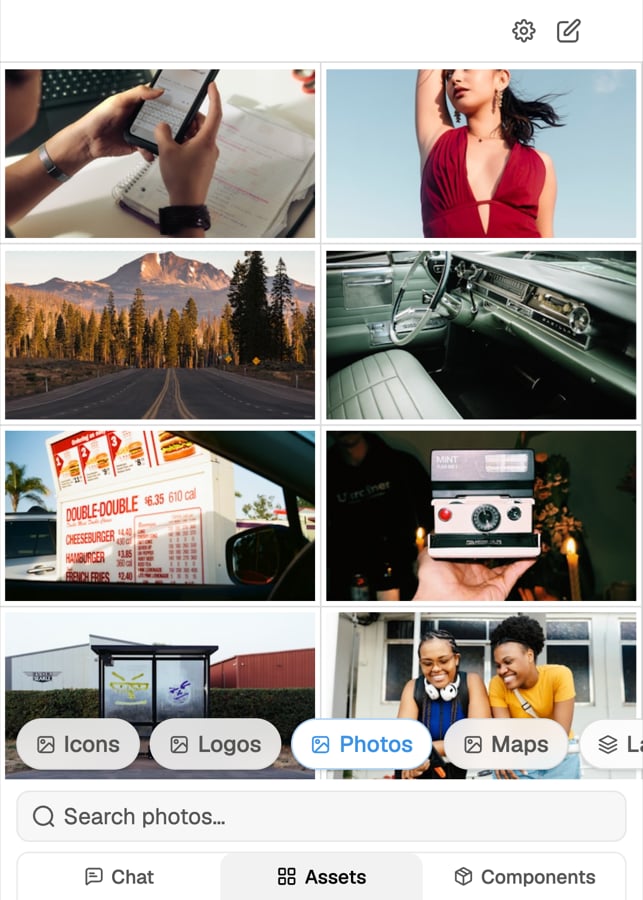
Photos, with the library row and search box every library shares.
warehouse aisle returns usable photos,
supply chain excellence does not. Photo search matches what is visible in the frame, so describe
the thing in front of the camera and let the headline carry the idea. If a headline is going over
the photo, pick a frame with a quiet area — sky, a wall, an out-of-focus background.
The agent does not search photos on its own the way it searches icons, logos and maps. To bring a
specific photo into a slide it is building, find it here and use Add to chat.
Your workspace’s own libraries
A workspace can add libraries of its own — approved photography, a house icon set — and they appear in the same row alongside the built-in ones, searched exactly the same way. A workspace admin sets them up from the web editor.Each library in detail
Icons
Semantic search over outline, solid and duotone icons, recoloured to your master.
Logos
Brand-accurate logos, plus the Switch Logo tab for swapping one in place.
Maps
Editable region shapes, city dots, labels and legends.
Layouts
Browse your workspace’s approved slides and insert them two ways.