

What each role can do
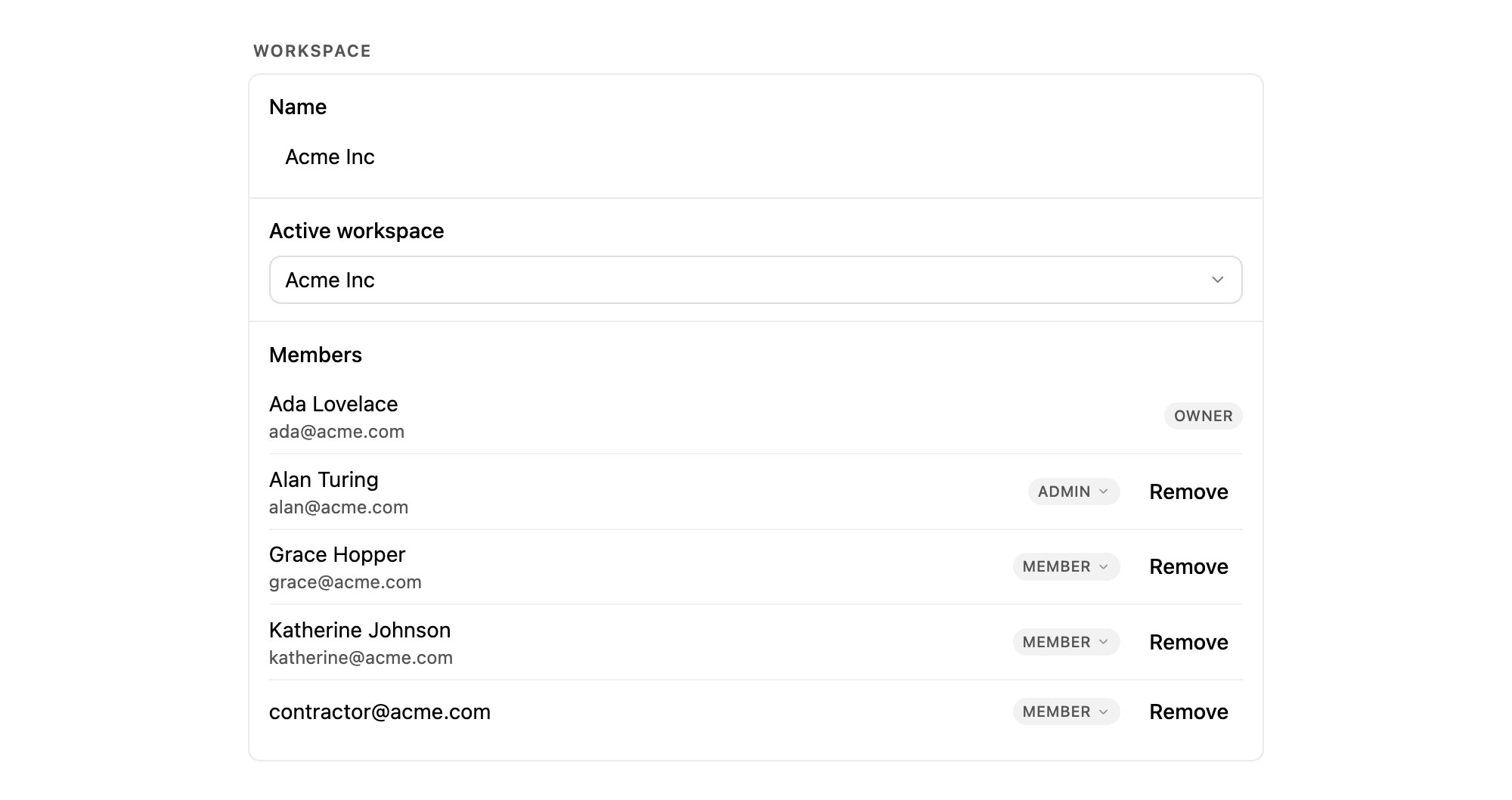
Members with their roles. The Owner has no Remove action, because ownership transfer is a separate flow.
An Owner cannot be removed or demoted from the member list, and cannot leave the workspace.
Everyone else gets a Leave action on their own row.
Changing someone’s role
In the member list, click the role badge next to a person and pick the new role. A confirmation follows: “Change role?”, then “Sam Okafor will change from Admin to Member.” So a misclick on a crowded list costs nothing.The dropdown offers Member and Admin only. There is no Owner entry, because
transferring ownership is a separate flow rather than a role change. Contact
support@make-pretty.com if ownership needs to move.
Inviting a teammate
1
Open Settings → Members
The section only appears for Owners and Admins. If you do not see it, either you are a Member
or in-app invites are switched off for your workspace, in which case ask support to add
people for you.
2
Type the address
The field is placeholdered
teammate@company.com. One address per invitation.3
Send it
Click Send invitation. The button reads “Sending…”, then the confirmation
“Invitation sent to teammate@company.com.” appears underneath.
Pending invitations
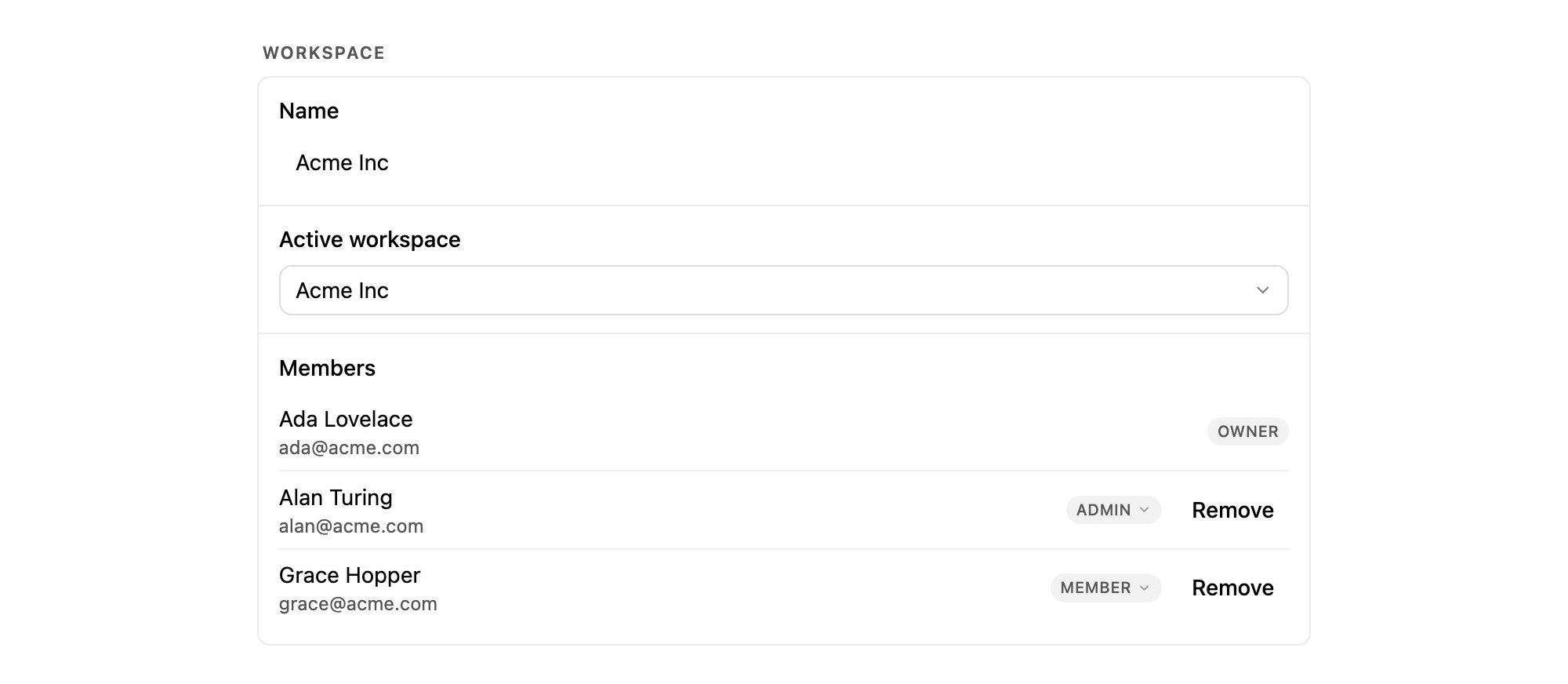
Invitations stay listed until they are accepted.
- Revoke withdraws the invitation. Use it when someone has left or the address was wrong.
- Resend appears once an invitation is marked Expired, and issues a fresh one to the same address and role.
Accepting an invitation
An invitation is bound to the address it was sent to. The invitee has to sign in as that address to accept it.Wrong account
Wrong account
If they are already signed in as somebody else, they land on “Wrong account”:
“This invitation was sent to a different email than the one you’re signed in with.” The fix
is to sign out and reopen the link with the invited address, not to ask for a new invitation.
This invitation has expired or was already used
This invitation has expired or was already used
“Ask for a new invite.” Revoke the old one and send a fresh invitation, or use Resend.