

1. Point at the slide
Select shapes in PowerPoint (a text box, a group, a whole slide’s worth) and a badge appears above the composer showing what you have picked: Slide 4 | 3 Items for shapes on one slide, Slide 4 for the slide itself, 2 slides for a multi-slide selection.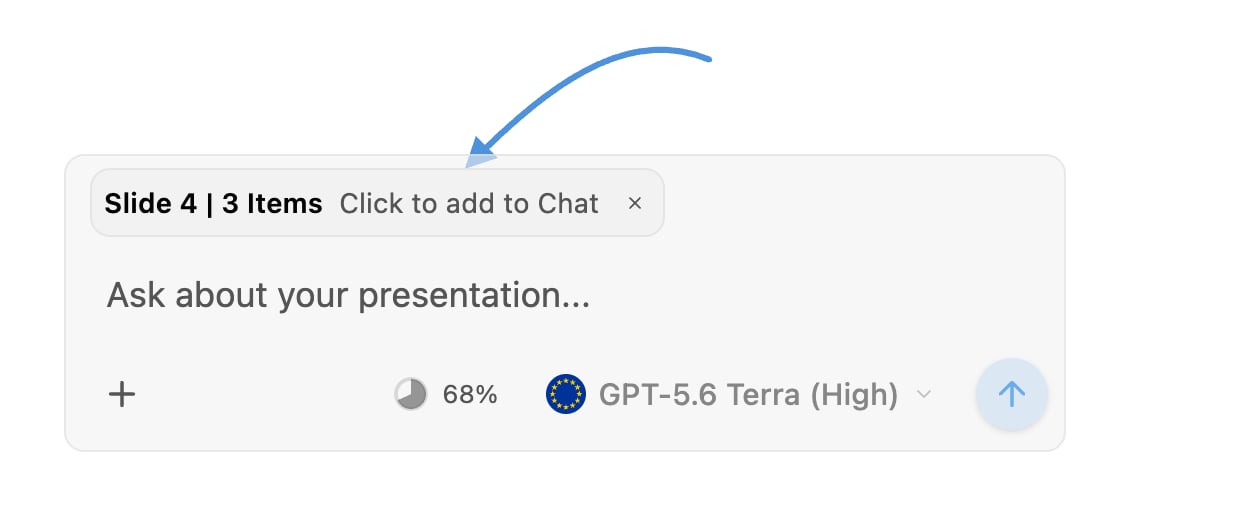
Click the badge to drop the selection into your message. The × dismisses it.
2. Attach files
Click + in the composer (“Add files”) or use Upload files. You can also drag files straight onto the pane; it lights up with “Drop to reference in chat”.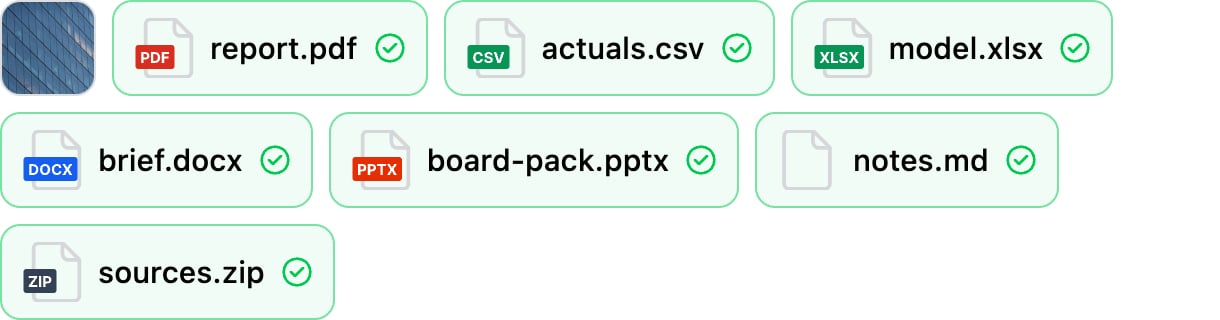
Every file type the picker accepts. Images come in as a thumbnail; everything else carries its format.
.pdf, .csv, .xls, .xlsx, .doc, .docx, .ppt, .pptx,
.md, .markdown and .zip.
How Pretty reads what you give it:
A
.pptx is not read as a file. To make a deck’s slides reusable, upload it as a
slide pool instead. That turns its slides into a searchable library
Pretty can pull layouts from.3. Drop in assets
Some references are objects rather than files, and they arrive in the composer as badges.Assets
Search icons, logos, maps and photos in the Assets tab and click Add to chat. The
badge names the exact icon or company, so Pretty places the one you picked rather than
searching again.
Slide pool layouts
A slide in a pool has Add to chat too. Referencing a layout is how you say “build it like
this one” without describing the layout.