

weekly-status runs as /weekly-status.
Use a skill for work you describe the same way every time, like a recurring status slide, your
firm’s company-profile page, or a house style for charts. Instead of retyping the brief, you type
/ and pick it.
Use a skill
Type / , choose a skill, and start a repeatable workflow without rebuilding the prompt.
/ in the composer. The placeholder switches to “Type / for skills” and the menu lists what
you can run. An empty chat hints at it too: “Ask anything about your workspace, or start from a
skill.”
Pick a skill, add anything specific to this run (“for the Q3 numbers in the attached file”), and
send. The skill’s instructions go to the agent along with your message.
If the menu shows “Some skills failed to load. Retry in a moment.”, the workspace catalog has
not synced yet. Your own skills are still there once it does.
Write a skill
Describe how you work. Pretty asks the missing questions and saves the result as a command.
You can also let the agent do it.
/write-a-skill interviews you about how you work and drafts a
personal skill from your answers.
Description is a routing decision
The agent sees every skill’s name and description in a catalog before it sees any instructions. It reads the description to decide whether the skill is relevant, then loads the body. So the description has to say when to use the skill, not only what it is. Write it in the third person and keep it to one line.Instructions the agent can follow
Write them as steps, not as a description of the outcome.- Number the steps. The agent works through them in order and shows you the plan.
- State the output shape. How many slides, which sections, what goes in the footer.
- Name the sources. Which slide pool layout, which component, whether to research the web.
- Say what to leave alone. Constraints stop the agent improvising.
- One skill, one job. A skill that builds a deck and reviews it will do both badly. Split it.
Two worked examples
The blocks below show the same three fields in the form organization skills are stored in. In the editor, the first line is Name, the second is Description, and everything under the---
is Instructions.
- Weekly status slide
- Company profile page
weekly-status.md
Edit a skill
Change a skill's name, description, or instructions whenever the workflow changes.
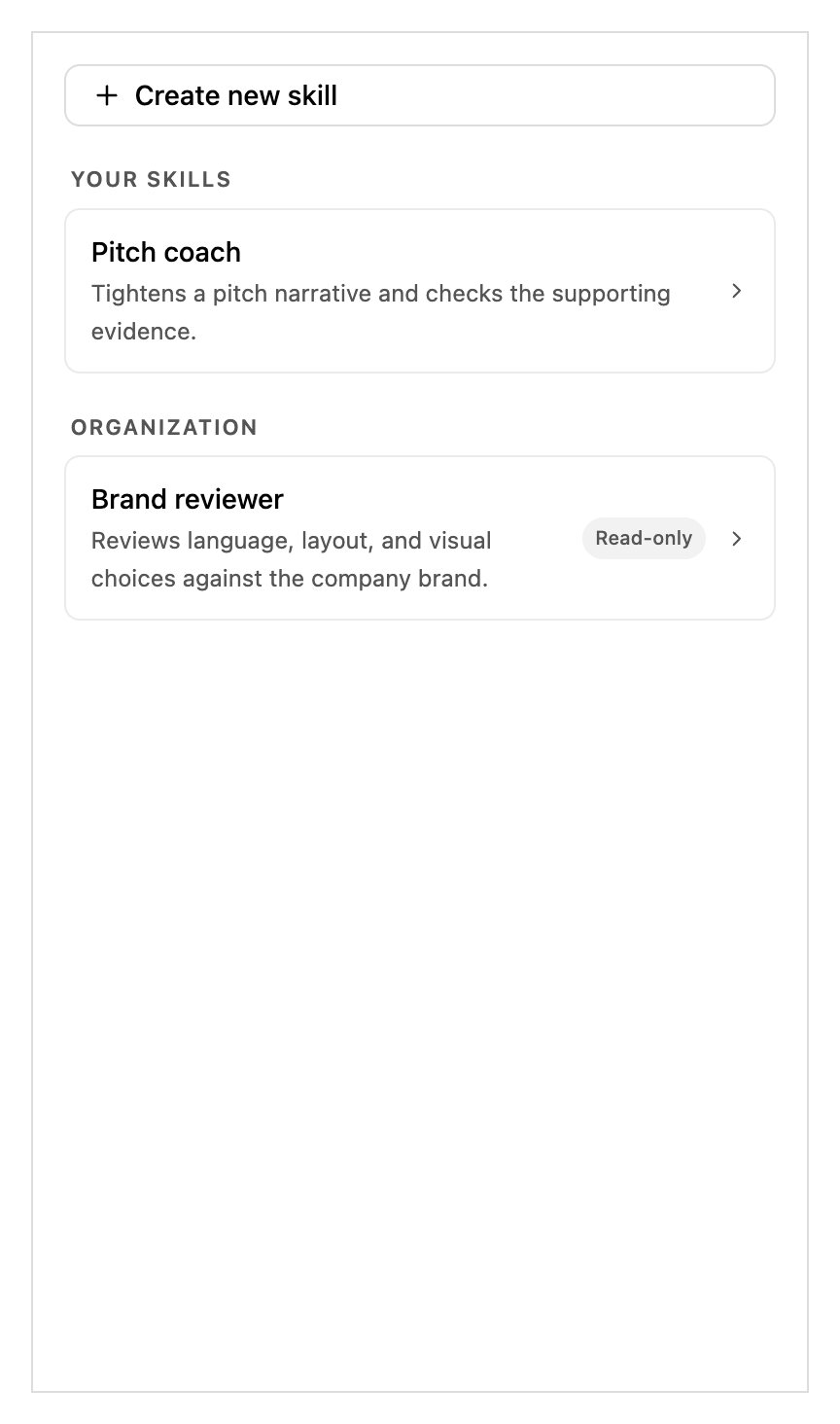
Settings → Skills. Your own skills first, then the organization's, which are read-only unless you are an admin.
Empty lists read “You haven’t created any personal skills yet.” and “No organization skills
yet.”
When you are offline
The editor keeps working without a connection. Saves and deletes are deferred rather than lost:- Before the change is applied: “You’re offline. Reconnect, then retry the save.” with a Retry save.
- After it is applied locally: “Saved locally. Reconnect to finish syncing.”
Where skills come from
Most
product: skills are for the agent to load by itself when the work calls for one, and you see
a Reading skill row in the turn. /write-a-skill is the one you can invoke directly. org:
and user: skills always appear in the slash menu.
Sharing a skill with your organization
A personal skill is yours alone. To make one available to everyone, a workspace admin republishes it as an organization skill from the web editor’s Admin chat. Organization skills are stored as.admin/SKILLS/<name>.md, with name and description as frontmatter and the instructions as the
body, the same shape as the worked examples above.
Once it is published, everyone gets /<name> in their slash menu, and the skill shows a
Read-only badge with the note “Organization skills are managed by workspace admins.” for
anyone who is not an admin.
Don’t try to do this from the add-in. The add-in’s chat is Edit-only and works on your deck.
Admin chat, which edits the shared workspace configuration, lives in the web editor.