

The composer
The box at the bottom of the pane. The placeholder reads “Ask about your presentation…”. Type/ instead and it switches to “Type / for skills”, the slash menu of your
skills.

The composer, with the context dial and model picker along its bottom edge.
If you select shapes on the slide before typing, a badge appears above the composer, something
like Slide 4 | 3 Items. Click it to point your message at exactly those shapes.
What a turn looks like
1
You send a message
Press Enter. Send again while Pretty is still working and the new message is held as
“Queued” until the turn finishes.
2
Pretty works, out loud
A stack of step rows appears: “Planning steps”, “Find icon”, “PowerPoint”,
“Snapshot”, “Reviewing design”. Rows arrive as the work happens.
3
Slides change in your deck
Under a PowerPoint row you get a line per slide touched: Inserted slide, Edited slide,
Moved slide, Deleted slide, Duplicated slide. Click one to jump to that slide.
4
Pretty replies, and asks how it went
A written answer, then “How good was this answer?”. Rating it is optional and takes a
second. See Managing chats.
Reading the step rows
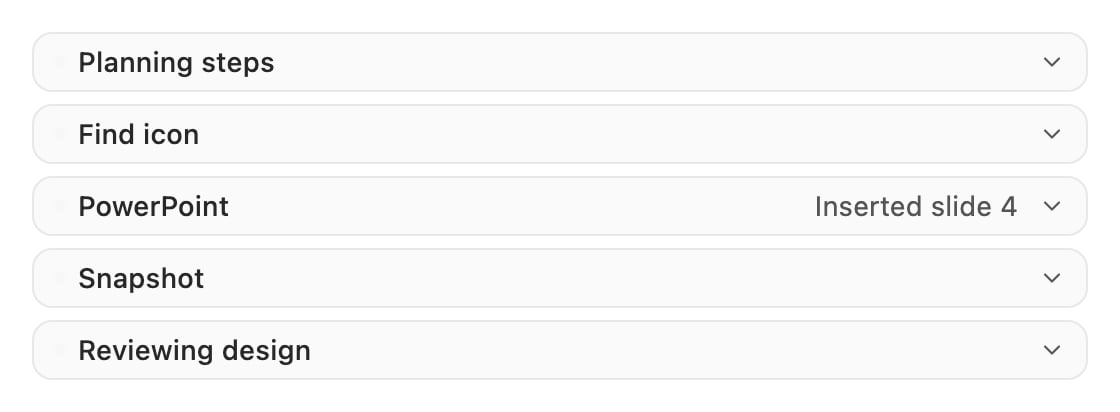
One turn: a plan, an icon search, the write to your deck, and Pretty checking its own work.
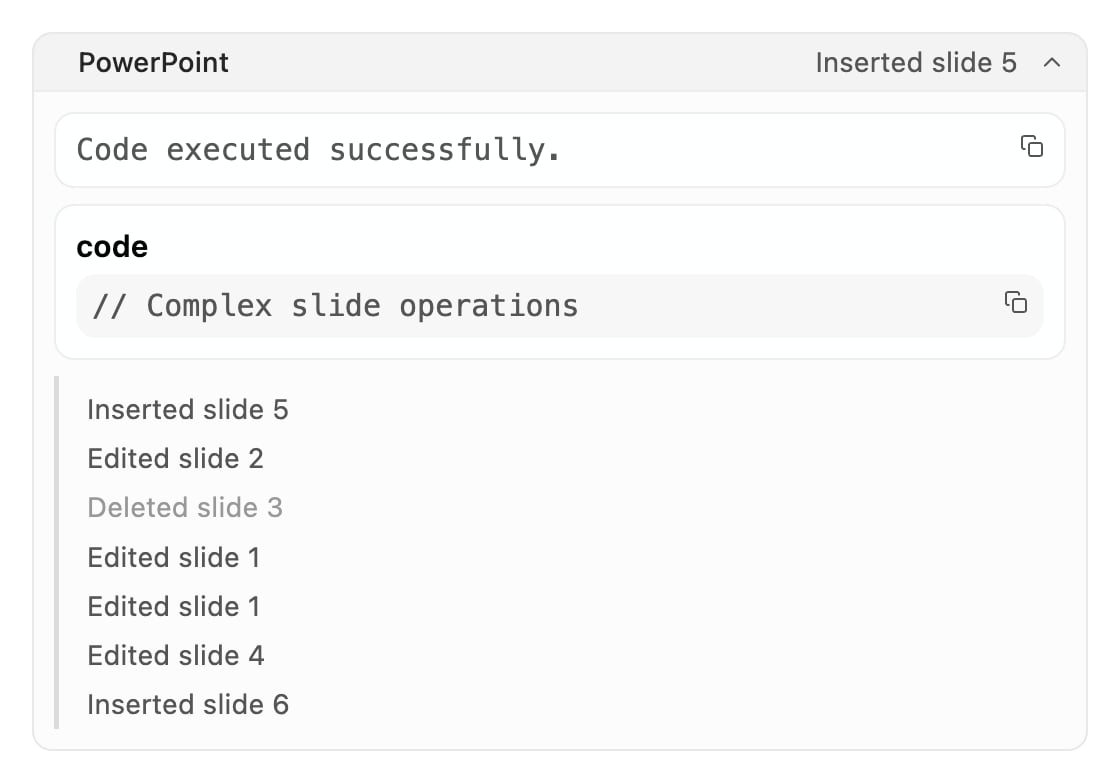
An expanded PowerPoint row: what it ran, what came back, and a line per slide it touched.
Every row label is plain language chosen for you, not the internal tool name. The full list,
and what each one does, is in the tool reference.
Undoing a slide
Hover a slide line under a PowerPoint row and a revert arrow appears, titled “Revert to previous version”. It opens “Revert slide?”, which re-inserts the version of that slide from before the change. Once a checkpoint has aged out, the arrow greys out and reads “Checkpoint no longer available”.Edit mode and Admin mode
The composer’s mode picker shows Edit in the add-in. Edit mode is the only one with the tools that write shapes to your deck and review the result. Admin is a different assistant. It edits the shared workspace configuration (org skills and asset libraries) rather than slides, and workspace admins reach it from the web editor.Where to go next
Writing good prompts
What to say, what to leave out, and how to scope a request.
Referencing your work
Selections, attachments and asset badges.
Choosing a model
The picker, the capability marks, and the EU badge.
Managing chats
Parallel chats, duplicating, editing a message, feedback.