> ## Documentation Index
> Fetch the complete documentation index at: https://docs.make-pretty.com/llms.txt
> Use this file to discover all available pages before exploring further.
# Editing existing slides
> Ask questions about the deck you already have, then point Pretty at the shapes and ask for a restyle, a rewrite or a new layout.
Pretty is as useful on a slide that already exists as on a blank one. Tell it exactly what to
touch.
## Select first, then ask
Select the shapes on the slide before you type. The composer shows a badge for the selection
(its tooltip reads *"Click to reference in message"*), and the agent works on those shapes rather
than guessing which part of the slide you meant.
Without a selection, "make the boxes bigger" on a slide with three sets of boxes is a coin flip.
With a selection it is unambiguous.
Select nothing when you want the whole slide reconsidered. Select something when you want one
thing changed and the rest left alone.
## Ask about the deck first
Ask a question about the presentation that is open and Pretty hands it to a subagent built for
that. You get a row labelled **Searching your deck (this may take a while)**. It reads the slides
— text, titles, tables and visuals — and changes nothing.
```text theme={null}
Go through the whole deck and list every place we give an ARR figure, with
the slide number and the exact figure. I want to know if they disagree.
```
It extracts the deck's text to a working file, searches that, and renders the strongest candidate
slides when the text alone cannot settle it. Charts and pictures are not in the extracted text, so
a question about them always costs a snapshot and takes longer. Narrow questions are fast;
"summarize everything in this deck" is a full read.
**Speaker notes and comments are not included.** Deck search sees slide content only, so "which
slide has the pricing caveat in the notes" comes back empty even when the caveat is there.
The answer comes back as data, without recommendations. Ask for the change as a separate message
once you have the facts — and ask for slide numbers, so you can point at them:
```text theme={null}
Slides 7, 12 and 19 all give a different ARR number. Make 12 and 19 match
slide 7, and add a footnote on each saying the figure is as of 30 September.
```
## What to ask for
```text theme={null}
Restyle these five boxes to match the master - accent fill on the first
one, light grey on the rest, no outlines, and drop the drop shadows.
```
```text theme={null}
Rewrite these bullets for a board audience. Lead with the number in each
one, cut everything to under twelve words, and make them parallel.
```
```text theme={null}
This slide is three stacked rows and it reads as a wall. Turn it into
three columns, same content, with the takeaway as a single line across
the top.
```
```text theme={null}
Slides 4 to 9 all use the same metric card, but the type sizes drifted.
Make them identical to the one on slide 4.
```
## The step rows during an edit
Three rows do the work. Knowing what each means tells you where a run went wrong.
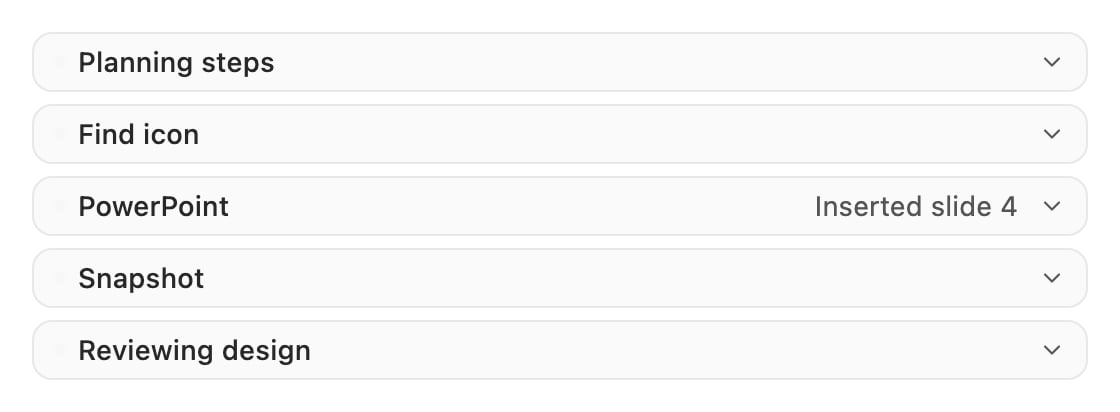 | Row | What it is |
| -------------------- | ------------------------------------------------------------------------------------------------------------------------------------------------------ |
| **PowerPoint** | Pretty writing to your deck. Shapes appear here. If the write fails, it is **rolled back** and you get the slide as it was, not a half-applied change. |
| **Snapshot** | Pretty renders the slide and looks at its own work. This is how it catches overflowing text, an overlap, or a column that fell out of alignment. |
| **Reviewing design** | A design critique of the slide it just changed, fed back to itself so it can fix problems before handing back to you. |
Snapshot and Reviewing design are Pretty checking itself, not extra work you asked for. On a
slide that took several attempts you will see the cycle repeat.
## Undoing a change
Two routes back:
* **PowerPoint's own undo**, since everything Pretty inserts is native.
* **Revert slide?** in the chat, which re-inserts the previous version of a slide Pretty changed.
It confirms first: *"This will re-insert the previous version of slide … into your
presentation."*
Editing an earlier message and resending gives you the same choice: **Continue and revert** or
**Continue without revert**. See [Managing chats](/chat/managing-chats).
## Keep your view where you put it
By default the pane jumps to each slide the agent touches. On a long edit across many slides that
is motion sickness. Turn off **Follow the agent's edits** in **Settings → Preferences**:
*"Jump to each slide the agent inserts. Off keeps your view where it is."* See
[Preferences](/help/preferences).
You can keep working in PowerPoint while a chat runs. Select shapes, type into placeholders, use
the ribbon. Pretty picks up whatever you have selected when you send your next message.
**Admin mode cannot edit slides.** The mode picker in the composer switches between **Edit** and
**Admin**. Admin mode talks to the workspace admin assistant, which manages shared configuration
and has no access to your deck. Stay in **Edit** for any slide work.
## When an edit does not land
* **Nothing changed.** Check the **PowerPoint** row. A rolled-back write leaves the slide
untouched by design; expand the row for the error.
* **It changed the wrong thing.** Select the shapes and say it again. A selection beats a
description.
* **It keeps going in circles.** Stop the run with **Stop generation** and give a narrower
instruction. One change per message works better than five.
* **Text is cut off.** Say so. Pretty can shrink type, reflow, or cut copy, but it needs to know
which you prefer.
| Row | What it is |
| -------------------- | ------------------------------------------------------------------------------------------------------------------------------------------------------ |
| **PowerPoint** | Pretty writing to your deck. Shapes appear here. If the write fails, it is **rolled back** and you get the slide as it was, not a half-applied change. |
| **Snapshot** | Pretty renders the slide and looks at its own work. This is how it catches overflowing text, an overlap, or a column that fell out of alignment. |
| **Reviewing design** | A design critique of the slide it just changed, fed back to itself so it can fix problems before handing back to you. |
Snapshot and Reviewing design are Pretty checking itself, not extra work you asked for. On a
slide that took several attempts you will see the cycle repeat.
## Undoing a change
Two routes back:
* **PowerPoint's own undo**, since everything Pretty inserts is native.
* **Revert slide?** in the chat, which re-inserts the previous version of a slide Pretty changed.
It confirms first: *"This will re-insert the previous version of slide … into your
presentation."*
Editing an earlier message and resending gives you the same choice: **Continue and revert** or
**Continue without revert**. See [Managing chats](/chat/managing-chats).
## Keep your view where you put it
By default the pane jumps to each slide the agent touches. On a long edit across many slides that
is motion sickness. Turn off **Follow the agent's edits** in **Settings → Preferences**:
*"Jump to each slide the agent inserts. Off keeps your view where it is."* See
[Preferences](/help/preferences).
You can keep working in PowerPoint while a chat runs. Select shapes, type into placeholders, use
the ribbon. Pretty picks up whatever you have selected when you send your next message.
**Admin mode cannot edit slides.** The mode picker in the composer switches between **Edit** and
**Admin**. Admin mode talks to the workspace admin assistant, which manages shared configuration
and has no access to your deck. Stay in **Edit** for any slide work.
## When an edit does not land
* **Nothing changed.** Check the **PowerPoint** row. A rolled-back write leaves the slide
untouched by design; expand the row for the error.
* **It changed the wrong thing.** Select the shapes and say it again. A selection beats a
description.
* **It keeps going in circles.** Stop the run with **Stop generation** and give a narrower
instruction. One change per message works better than five.
* **Text is cut off.** Say so. Pretty can shrink type, reflow, or cut copy, but it needs to know
which you prefer.