> ## Documentation Index
> Fetch the complete documentation index at: https://docs.make-pretty.com/llms.txt
> Use this file to discover all available pages before exploring further.
# Slide pools
> Upload a .pptx so its slides become a searchable library of reusable layouts, browse them from the Layouts tab, and curate the descriptions the agent searches.
A **slide pool** is a `.pptx` you upload so its slides become a searchable library of reusable
layouts. Upload your approved deck once, and every slide in it is something you or the agent can
find and reuse.
A pool is not a master or a template deck. A master governs the theme of a whole deck; a pool is a
shelf of finished slides you pull one at a time. Uploading a pool changes nothing about the deck
you have open.
## Your pools
**Assets → Layouts** opens on your pools, each with a preview and its slide count. Hover a pool to
rename or delete it; deleting takes its slides with it.
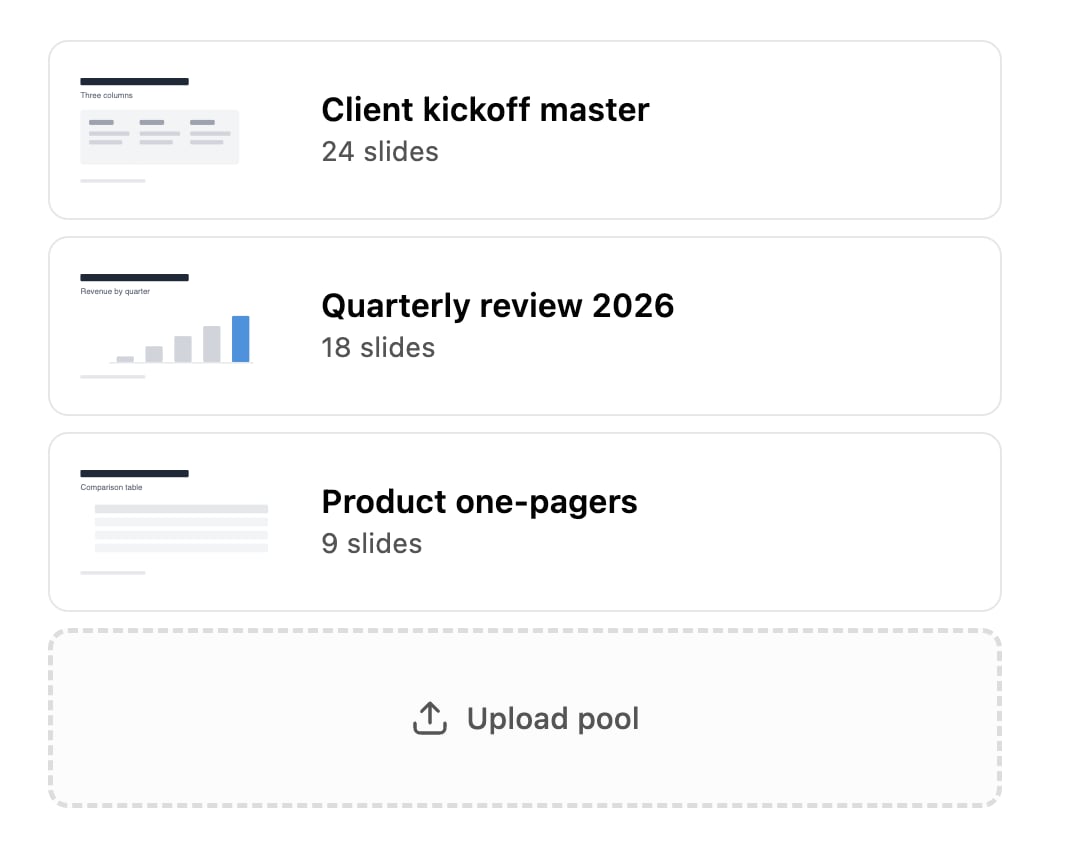 Uploading takes one `.pptx`.
 While it processes, Pretty renders a preview of every slide and writes its **Structure** and
**Content** descriptions.
## Browsing and inserting
Open a pool to see its slides, searchable with `Search slides…`. **Back** returns to the pool list.
While it processes, Pretty renders a preview of every slide and writes its **Structure** and
**Content** descriptions.
## Browsing and inserting
Open a pool to see its slides, searchable with `Search slides…`. **Back** returns to the pool list.
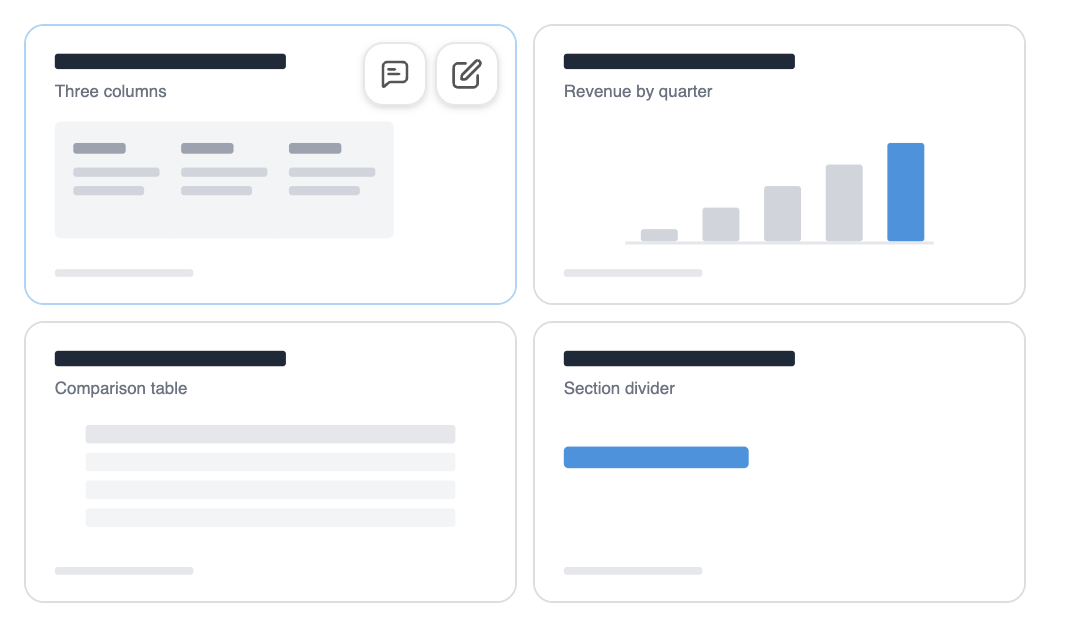 **Add to chat** hands the layout to the agent for your next message ("fill this layout with the
numbers from the attached file"). **Edit details** opens the fields below.
Inside a pool, a toggle in the toolbar switches between two ways of bringing a slide across:
**Match deck theme** — *"remaps the slide onto your deck's master (adapts to the current theme)"* —
and **Keep original look** — *"brings the source master along (identical to the pool preview; adds
a master to your deck)"*.
| Situation | Style |
| ------------------------------------------------------------------------------------------------ | ---------------------------------------- |
| The pool and the deck you are in use different templates | **Match deck theme** |
| You are assembling a client deck on the client's template | **Match deck theme** |
| The layout must look exactly like the preview (a certified chart page, a legal disclaimer slide) | **Keep original look** |
| The pool *is* the template you are building on | Either; **Keep original look** is safest |
**Keep original look** adds the source master to your deck. Do it for a handful of slides from
different pools and you end up with several masters in one file, which makes later theme changes
messy. Prefer **Match deck theme** unless the slide has to be pixel-identical.
Your workspace also has a default insert mode that applies when the agent inserts a pool slide on
its own. Out of the box it is `AUTO`, which reuses a same-named destination layout when one exists
and otherwise keeps the source.
## The descriptions that drive search
The agent finds a slide by what its descriptions say. **Edit details** on a slide card opens three
fields: **Structure** for the shape of the slide, **Content** for its subject and audience, and
**Editor notes** for house rules the agent should follow.
**Add to chat** hands the layout to the agent for your next message ("fill this layout with the
numbers from the attached file"). **Edit details** opens the fields below.
Inside a pool, a toggle in the toolbar switches between two ways of bringing a slide across:
**Match deck theme** — *"remaps the slide onto your deck's master (adapts to the current theme)"* —
and **Keep original look** — *"brings the source master along (identical to the pool preview; adds
a master to your deck)"*.
| Situation | Style |
| ------------------------------------------------------------------------------------------------ | ---------------------------------------- |
| The pool and the deck you are in use different templates | **Match deck theme** |
| You are assembling a client deck on the client's template | **Match deck theme** |
| The layout must look exactly like the preview (a certified chart page, a legal disclaimer slide) | **Keep original look** |
| The pool *is* the template you are building on | Either; **Keep original look** is safest |
**Keep original look** adds the source master to your deck. Do it for a handful of slides from
different pools and you end up with several masters in one file, which makes later theme changes
messy. Prefer **Match deck theme** unless the slide has to be pixel-identical.
Your workspace also has a default insert mode that applies when the agent inserts a pool slide on
its own. Out of the box it is `AUTO`, which reuses a same-named destination layout when one exists
and otherwise keeps the source.
## The descriptions that drive search
The agent finds a slide by what its descriptions say. **Edit details** on a slide card opens three
fields: **Structure** for the shape of the slide, **Content** for its subject and audience, and
**Editor notes** for house rules the agent should follow.
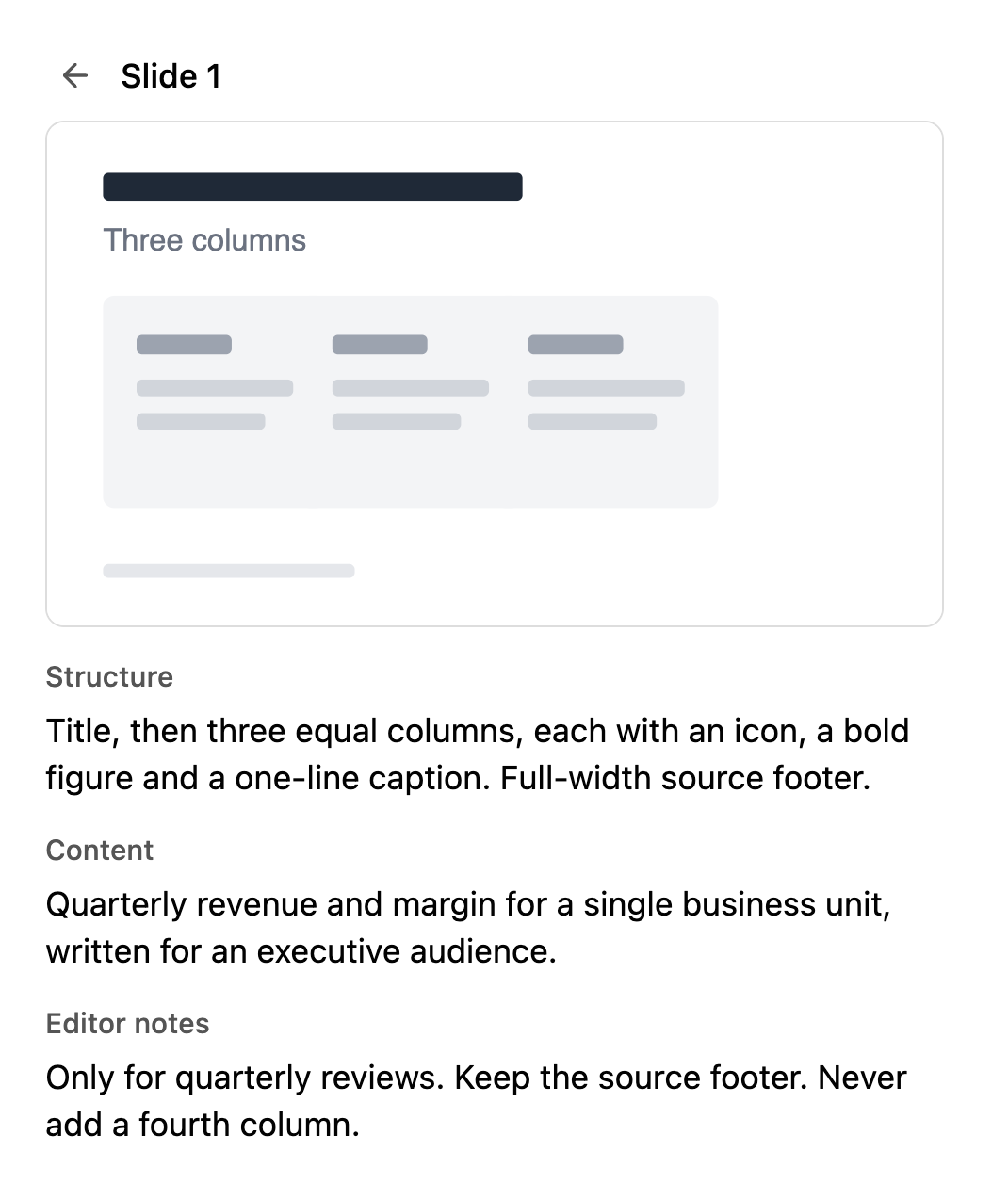 Until a slide has been analyzed the first two read *"…— not analyzed yet."* **Editor notes** always
starts empty.
## How the agent uses them
The `slidepool_search` tool ranks the pool's slides by their **Structure** and **Content** text,
then re-ranks the top candidates by looking at their thumbnails as a 2×2 grid, and returns the
four best. It searches with a full phrase rather than a keyword ("a quarterly revenue bar chart
for execs"), so your descriptions should read like phrases too.
Instead of choosing for you, the agent can hand the candidates back. The step is titled
*"Choose a slide layout"* and carries a note field: *"Optional: note for the AI (e.g. focus on
Q3 results, drop the 3rd column…)"*. Pick one, say how you want it adapted, and the agent
builds on it.
## Writing descriptions that get found
Describe the layout and its job, not the sample numbers that happen to be on it. The descriptions
in the screenshot above are the shape to copy; *"Slide with boxes and text"* and *"Financials"* are
what to avoid.
* Write phrases, not keyword lists. The ranking compares meaning.
* Put the layout in **Structure** and the subject in **Content**. Splitting them keeps both
searchable on their own.
* Name the audience if the slide has one: "for a board", "for a client kickoff".
* Put constraints in **Editor notes**, not in the description.
If the agent keeps reaching for the wrong slide, fix **Structure** and **Content** on the slides
it should have picked. That does more than rewording your prompt, and it fixes it for everyone.
## Related
The other libraries in the same tab: icons, logos, maps and photos.
For shape groups rather than whole slides.
Until a slide has been analyzed the first two read *"…— not analyzed yet."* **Editor notes** always
starts empty.
## How the agent uses them
The `slidepool_search` tool ranks the pool's slides by their **Structure** and **Content** text,
then re-ranks the top candidates by looking at their thumbnails as a 2×2 grid, and returns the
four best. It searches with a full phrase rather than a keyword ("a quarterly revenue bar chart
for execs"), so your descriptions should read like phrases too.
Instead of choosing for you, the agent can hand the candidates back. The step is titled
*"Choose a slide layout"* and carries a note field: *"Optional: note for the AI (e.g. focus on
Q3 results, drop the 3rd column…)"*. Pick one, say how you want it adapted, and the agent
builds on it.
## Writing descriptions that get found
Describe the layout and its job, not the sample numbers that happen to be on it. The descriptions
in the screenshot above are the shape to copy; *"Slide with boxes and text"* and *"Financials"* are
what to avoid.
* Write phrases, not keyword lists. The ranking compares meaning.
* Put the layout in **Structure** and the subject in **Content**. Splitting them keeps both
searchable on their own.
* Name the audience if the slide has one: "for a board", "for a client kickoff".
* Put constraints in **Editor notes**, not in the description.
If the agent keeps reaching for the wrong slide, fix **Structure** and **Content** on the slides
it should have picked. That does more than rewording your prompt, and it fixes it for everyone.
## Related
The other libraries in the same tab: icons, logos, maps and photos.
For shape groups rather than whole slides.