> ## Documentation Index
> Fetch the complete documentation index at: https://docs.make-pretty.com/llms.txt
> Use this file to discover all available pages before exploring further.
# Skills
> Save a brief you keep retyping as a slash command. How to run one, write one, edit it, and share it with your workspace.
A skill is a set of instructions you write once and hand to the agent whenever you need them. Each
one becomes a **slash command**: a skill named `weekly-status` runs as `/weekly-status`.
Use a skill for work you describe the same way every time, like a recurring status slide, your
firm's company-profile page, or a house style for charts. Instead of retyping the brief, you type
`/` and pick it.
## Use a skill
Type `/` in the composer. The placeholder switches to *"Type / for skills"* and the menu lists what
you can run. An empty chat hints at it too: *"Ask anything about your workspace, or start from a
skill."*
Pick a skill, add anything specific to this run ("for the Q3 numbers in the attached file"), and
send. The skill's instructions go to the agent along with your message.
If the menu shows *"Some skills failed to load. Retry in a moment."*, the workspace catalog has
not synced yet. Your own skills are still there once it does.
## Write a skill
Open **Settings → Skills** and click **Create new skill**. There are three fields, and each one
does a different job.
| Field | Prompt in the editor | What it controls |
| ---------------- | ---------------------------------------------- | --------------------------------------------------------------------------------------- |
| **Name** | *"e.g. Review a pitch deck"* | The slash command. The editor shows it back as *"Slash command: /review-a-pitch-deck"*. |
| **Description** | *"What this skill is for"* | Whether the agent reaches for this skill at all. |
| **Instructions** | *"Tell the agent what to do and how to do it"* | What the agent does when the skill runs. |
You can also let the agent do it. `/write-a-skill` interviews you about how you work and drafts a
personal skill from your answers.
### Description is a routing decision
The agent sees every skill's name and description in a catalog before it sees any instructions.
It reads the description to decide whether the skill is relevant, then loads the body.
So the description has to say when to use the skill, not only what it is. Write it in the third
person and keep it to one line.
| Weak | Strong |
| --------------------- | ------------------------------------------------------------------------------------------------------------------------------------ |
| *"Status slide."* | *"Builds the weekly project status slide. Use when the user asks for a status update, a weekly update, or a project check-in."* |
| *"Company profiles."* | *"Builds a one-page company profile from research. Use when the user names a company and wants a profile, overview or target page."* |
Say the words a user would type. The description is what makes `/company-profile` fire when
someone writes "put together a page on Siemens" without ever typing the slash command.
### Instructions the agent can follow
Write them as steps, not as a description of the outcome.
* **Number the steps.** The agent works through them in order and shows you the plan.
* **State the output shape.** How many slides, which sections, what goes in the footer.
* **Name the sources.** Which slide pool layout, which component, whether to research the web.
* **Say what to leave alone.** Constraints stop the agent improvising.
* **One skill, one job.** A skill that builds a deck *and* reviews it will do both badly. Split it.
### Two worked examples
The blocks below show the same three fields in the form organization skills are stored in. In the
editor, the first line is **Name**, the second is **Description**, and everything under the `---`
is **Instructions**.
```md weekly-status.md theme={null}
---
name: weekly-status
description: Builds the weekly project status slide. Use when the user asks for a status update, a weekly update, or a project check-in slide.
---
Build one slide, appended to the end of the deck.
1. Ask which project and which week if the user has not said.
2. Use the "Status" layout from the slide pool. Search layouts before building anything.
3. Fill four sections, in this order: Done this week, In progress, Blockers, Next week.
4. Each section takes at most four bullets, each one line, each starting with a verb.
5. Put a RAG status dot in the header: green on track, amber at risk, red slipping. Ask which
one if it is not obvious from the source material.
6. Leave the date placeholder in the footer alone.
Never invent a blocker. If there is no source for a section, write "Nothing to report".
```
```md company-profile.md theme={null}
---
name: company-profile
description: Builds a one-page company profile from live research. Use when the user names a company and asks for a profile, an overview, or a target page.
---
Build one slide profiling the company the user names.
1. Research the company on the web. Prefer the company's own site, its latest annual report,
and filings over press coverage.
2. Find the company's logo and place it top right.
3. Lay the page out in four blocks: Overview, Key figures, Products, Recent developments.
4. Key figures takes revenue, employees, headquarters and founding year. Give each figure its
year. Write "n/a" for anything you cannot source.
5. Recent developments takes at most three items from the last eighteen months, each one line
and dated.
6. Add a "Sources: …" label along the bottom listing the sites you used.
Do not estimate figures. Do not use marketing language from the company's own copy.
```
Both are specific about the layout, the counts and the fallback when data is missing, which is what
makes them repeatable.
## Edit a skill
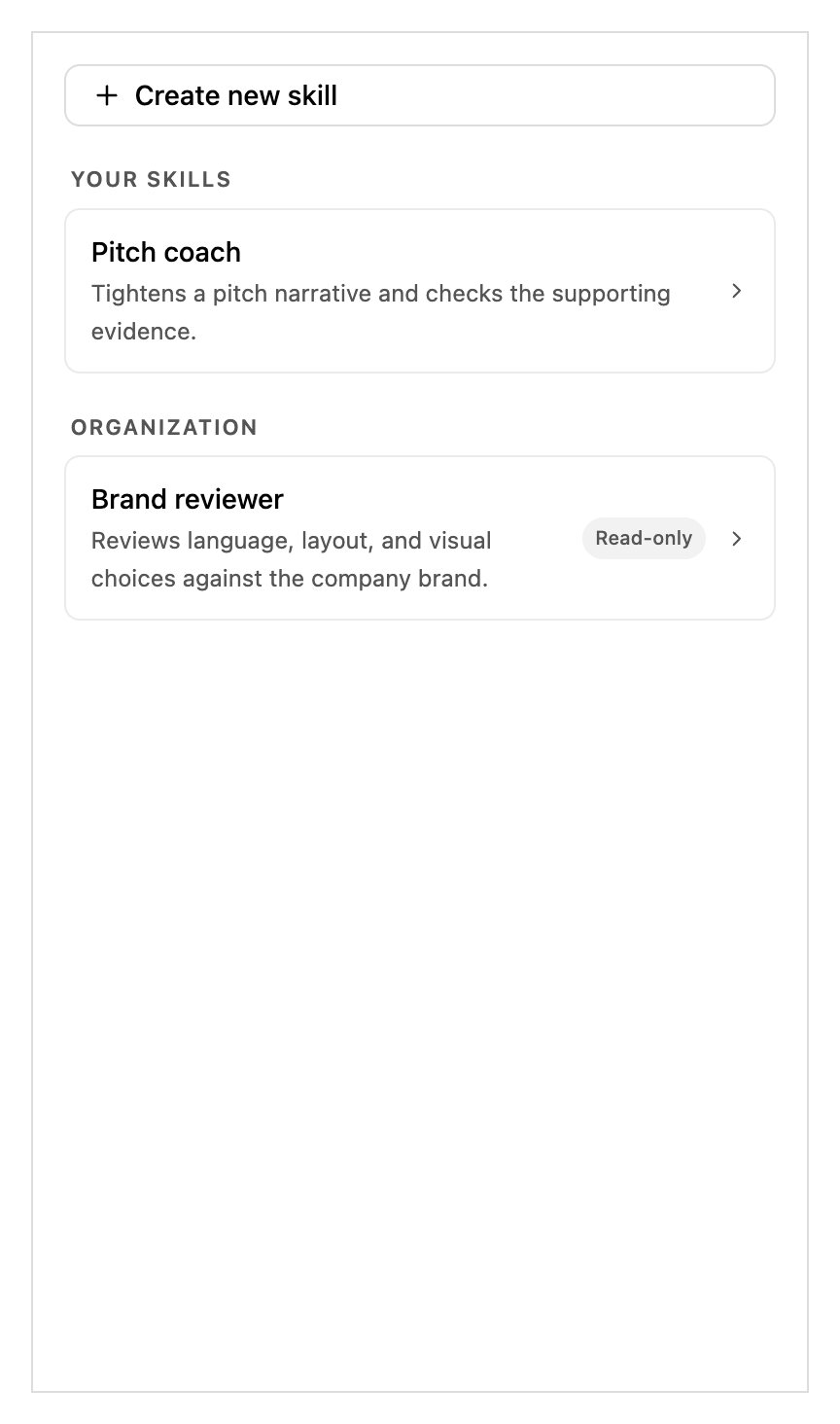
Open **Settings → Skills** (*"View and manage personal and organization skills."*). The page lists
**Your skills** and **Organization** side by side.
 | Control | What it does |
| -------------------- | --------------------------------------------------------------------------- |
| **Create new skill** | Opens the editor. |
| **Edit skill** | Changes a personal skill. |
| **View skill** | Reads an organization skill you cannot edit. |
| **Delete skill** | Asks *"Delete weekly-status?"* with *"This permanently removes the skill."* |
Empty lists read *"You haven't created any personal skills yet."* and *"No organization skills
yet."*
### When you are offline
The editor keeps working without a connection. Saves and deletes are deferred rather than lost:
* Before the change is applied: *"You're offline. Reconnect, then retry the save."* with a
**Retry save**.
* After it is applied locally: *"Saved locally. Reconnect to finish syncing."*
If the same skill was changed somewhere else while you were editing, you get *"This skill changed
elsewhere"* with *"Reload the latest version before editing again. Your draft will be discarded."*
Copy your draft out before you hit **Reload latest**.
## Where skills come from
| Source | Ref prefix | Who writes it | Scope |
| -------------- | ---------- | ---------------------------- | -------------------------------------------- |
| Pretty | `product:` | Shipped with the product. | Everyone |
| Your workspace | `org:` | Curated by workspace admins. | *"Everyone can use it. Admins can edit it."* |
| You | `user:` | Yours alone. | *"Only you can use and edit it."* |
Most `product:` skills are for the agent to load by itself when the work calls for one, and you see
a **Reading skill** row in the turn. `/write-a-skill` is the one you can invoke directly. `org:`
and `user:` skills always appear in the slash menu.
## Sharing a skill with your organization
A personal skill is yours alone. To make one available to everyone, a workspace admin republishes
it as an organization skill from the web editor's Admin chat. Organization skills are stored as
`.admin/SKILLS/.md`, with `name` and `description` as frontmatter and the instructions as the
body, the same shape as the worked examples above.
Once it is published, everyone gets `/` in their slash menu, and the skill shows a
**Read-only** badge with the note *"Organization skills are managed by workspace admins."* for
anyone who is not an admin.
Don't try to do this from the add-in. The add-in's chat is Edit-only and works on your deck.
Admin chat, which edits the shared workspace configuration, lives in the web editor.
| Control | What it does |
| -------------------- | --------------------------------------------------------------------------- |
| **Create new skill** | Opens the editor. |
| **Edit skill** | Changes a personal skill. |
| **View skill** | Reads an organization skill you cannot edit. |
| **Delete skill** | Asks *"Delete weekly-status?"* with *"This permanently removes the skill."* |
Empty lists read *"You haven't created any personal skills yet."* and *"No organization skills
yet."*
### When you are offline
The editor keeps working without a connection. Saves and deletes are deferred rather than lost:
* Before the change is applied: *"You're offline. Reconnect, then retry the save."* with a
**Retry save**.
* After it is applied locally: *"Saved locally. Reconnect to finish syncing."*
If the same skill was changed somewhere else while you were editing, you get *"This skill changed
elsewhere"* with *"Reload the latest version before editing again. Your draft will be discarded."*
Copy your draft out before you hit **Reload latest**.
## Where skills come from
| Source | Ref prefix | Who writes it | Scope |
| -------------- | ---------- | ---------------------------- | -------------------------------------------- |
| Pretty | `product:` | Shipped with the product. | Everyone |
| Your workspace | `org:` | Curated by workspace admins. | *"Everyone can use it. Admins can edit it."* |
| You | `user:` | Yours alone. | *"Only you can use and edit it."* |
Most `product:` skills are for the agent to load by itself when the work calls for one, and you see
a **Reading skill** row in the turn. `/write-a-skill` is the one you can invoke directly. `org:`
and `user:` skills always appear in the slash menu.
## Sharing a skill with your organization
A personal skill is yours alone. To make one available to everyone, a workspace admin republishes
it as an organization skill from the web editor's Admin chat. Organization skills are stored as
`.admin/SKILLS/.md`, with `name` and `description` as frontmatter and the instructions as the
body, the same shape as the worked examples above.
Once it is published, everyone gets `/` in their slash menu, and the skill shows a
**Read-only** badge with the note *"Organization skills are managed by workspace admins."* for
anyone who is not an admin.
Don't try to do this from the add-in. The add-in's chat is Edit-only and works on your deck.
Admin chat, which edits the shared workspace configuration, lives in the web editor.