> ## Documentation Index
> Fetch the complete documentation index at: https://docs.make-pretty.com/llms.txt
> Use this file to discover all available pages before exploring further.
# Preferences
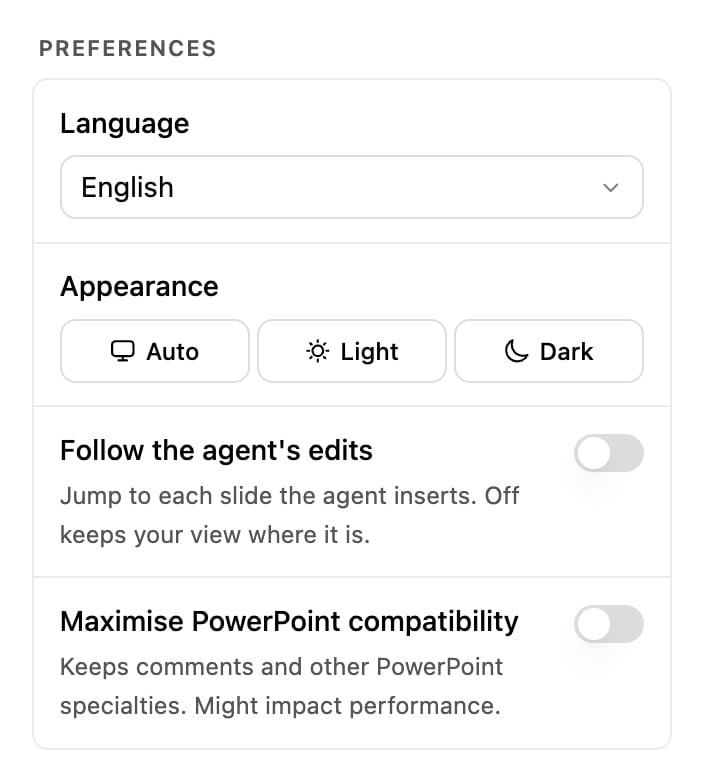
> Appearance, language, and the two add-in behaviours that change how Pretty works on your deck.
Open the settings drawer from the top bar and choose **Preferences**. Five settings, all of them
per person rather than per workspace.
| Setting | Options | What it does |
| ------------------------------------- | ------------------------------- | ------------------------------------------------------------------------------ |
| **Appearance** | **Auto** / **Light** / **Dark** | Theme of the task pane. **Auto** follows your operating system. |
| **Language** | English, German | *"Choose interface language."* Changes the pane's labels. |
| **Follow the agent's edits** | On / Off | *"Jump to each slide the agent inserts. Off keeps your view where it is."* |
| **Maximise PowerPoint compatibility** | On / Off | *"Keeps comments and other PowerPoint specialties. Might impact performance."* |
| **Replay onboarding** | Button **Replay** | *"Walk through the welcome questions again."* |
 ## Follow the agent's edits
On, PowerPoint jumps to each slide as Pretty inserts or changes it, so you watch the work land.
Off, your view stays where you put it and slides change behind you.
Turn it off when:
* You are editing one slide by hand while a chat builds others.
* Pretty is drafting a long deck and the jumping is making it hard to read anything.
* You are presenting or screen-sharing while a chat runs.
Nothing else changes. The same slides are written either way, and the slide lines under a
**PowerPoint** step row still take you to them when you click.
## Maximise PowerPoint compatibility
On, Pretty preserves PowerPoint features it does not itself use, so comments and other
specialties survive the round trip through the deck. The cost is speed, because every write
carries more of the file.
Leave it on for decks that other people are reviewing in PowerPoint, where comment threads and
tracked detail matter. Turn it off when you are drafting alone and want the fastest turns.
## Replay onboarding
Runs the welcome questions again, the short **"Let's get you set up."** flow from your first
sign-in. It does not reset anything else: your chats, components and skills are untouched.
## Account
Below Preferences in the same drawer.
| Item | What it does |
| -------------------- | -------------------------------------------------------------------------------------------------------------------------------------------- |
| **Export your data** | *"Download a ZIP of everything we store about you."* Press **Download**; it shows *"Preparing…"* while the archive is built, then downloads. |
| **Sign out** | *"You'll be returned to the sign-in screen."* The next sign-in repeats the browser approval. |
| **Legal** | *"Imprint, privacy policy and company info."* |
**Danger zone → Delete account** is permanent. *"This will permanently delete your account,
chats, presentations, files, and all other data. There is no recovery."* You have to type a
confirmation phrase before the button works. Export your data first if you want a copy.
## Related
Every section of the settings drawer, in order.
What the add-in can access, and what we do with your data.
## Follow the agent's edits
On, PowerPoint jumps to each slide as Pretty inserts or changes it, so you watch the work land.
Off, your view stays where you put it and slides change behind you.
Turn it off when:
* You are editing one slide by hand while a chat builds others.
* Pretty is drafting a long deck and the jumping is making it hard to read anything.
* You are presenting or screen-sharing while a chat runs.
Nothing else changes. The same slides are written either way, and the slide lines under a
**PowerPoint** step row still take you to them when you click.
## Maximise PowerPoint compatibility
On, Pretty preserves PowerPoint features it does not itself use, so comments and other
specialties survive the round trip through the deck. The cost is speed, because every write
carries more of the file.
Leave it on for decks that other people are reviewing in PowerPoint, where comment threads and
tracked detail matter. Turn it off when you are drafting alone and want the fastest turns.
## Replay onboarding
Runs the welcome questions again, the short **"Let's get you set up."** flow from your first
sign-in. It does not reset anything else: your chats, components and skills are untouched.
## Account
Below Preferences in the same drawer.
| Item | What it does |
| -------------------- | -------------------------------------------------------------------------------------------------------------------------------------------- |
| **Export your data** | *"Download a ZIP of everything we store about you."* Press **Download**; it shows *"Preparing…"* while the archive is built, then downloads. |
| **Sign out** | *"You'll be returned to the sign-in screen."* The next sign-in repeats the browser approval. |
| **Legal** | *"Imprint, privacy policy and company info."* |
**Danger zone → Delete account** is permanent. *"This will permanently delete your account,
chats, presentations, files, and all other data. There is no recovery."* You have to type a
confirmation phrase before the button works. Export your data first if you want a copy.
## Related
Every section of the settings drawer, in order.
What the add-in can access, and what we do with your data.