> ## Documentation Index
> Fetch the complete documentation index at: https://docs.make-pretty.com/llms.txt
> Use this file to discover all available pages before exploring further.
# Components
> Save shapes from any slide as a reusable component, keep it private or share it with your organization.
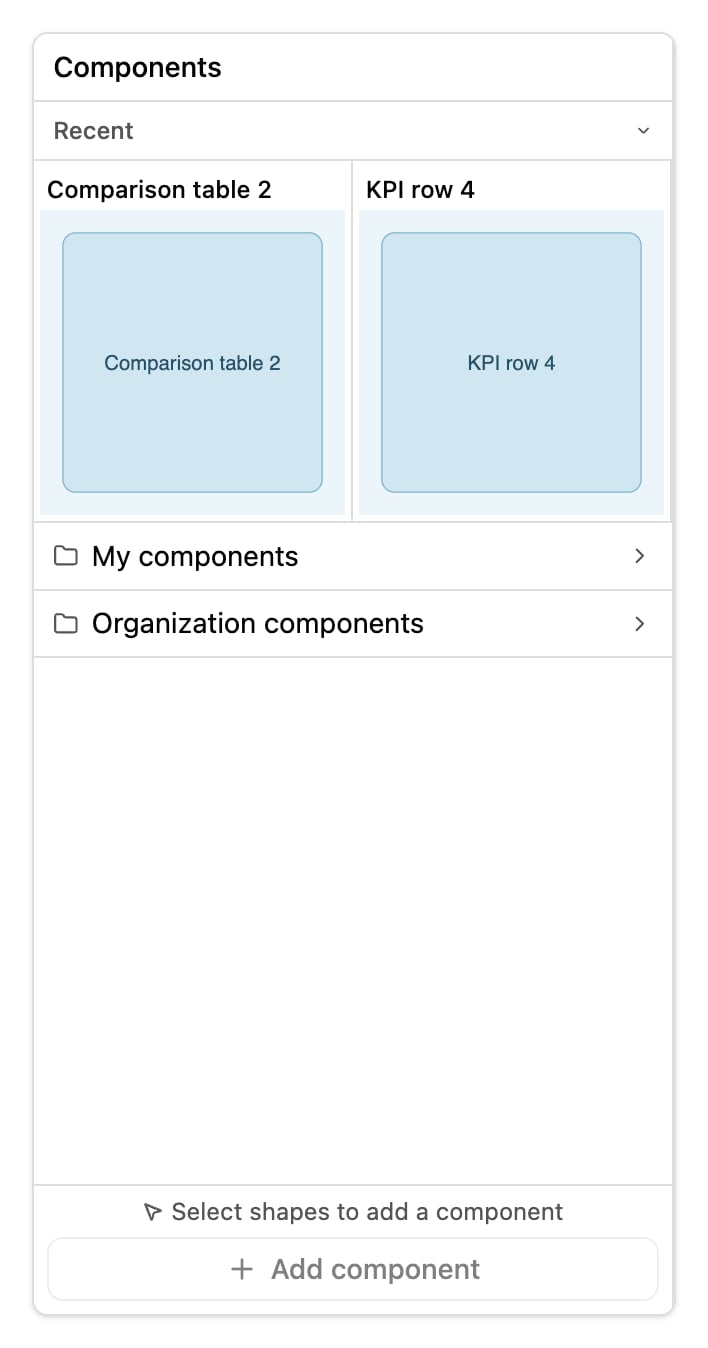
The **Components** tab holds shape groups you have saved and can put back on any slide: a KPI
tile, a two-by-two matrix, a footer bar built the way your firm builds them. A component stores
the shapes as shapes, so it comes back editable.
## Two libraries
 | Library | Who can see it | Who can publish to it | Who can delete from it |
| --------------------------- | ------------------------- | --------------------- | ---------------------- |
| **My components** | Only you | You | You |
| **Organization components** | Everyone in the workspace | Workspace admins | Workspace admins |
Members who are not admins see *"No components yet. Organization admins can publish them."* in
the organization library until an admin publishes one. Their own publishes go to **My
components**, and the drawer says *"Your component will be private."* See
[Members and roles](/admin/members).
## The flow, in three moves
| Library | Who can see it | Who can publish to it | Who can delete from it |
| --------------------------- | ------------------------- | --------------------- | ---------------------- |
| **My components** | Only you | You | You |
| **Organization components** | Everyone in the workspace | Workspace admins | Workspace admins |
Members who are not admins see *"No components yet. Organization admins can publish them."* in
the organization library until an admin publishes one. Their own publishes go to **My
components**, and the drawer says *"Your component will be private."* See
[Members and roles](/admin/members).
## The flow, in three moves
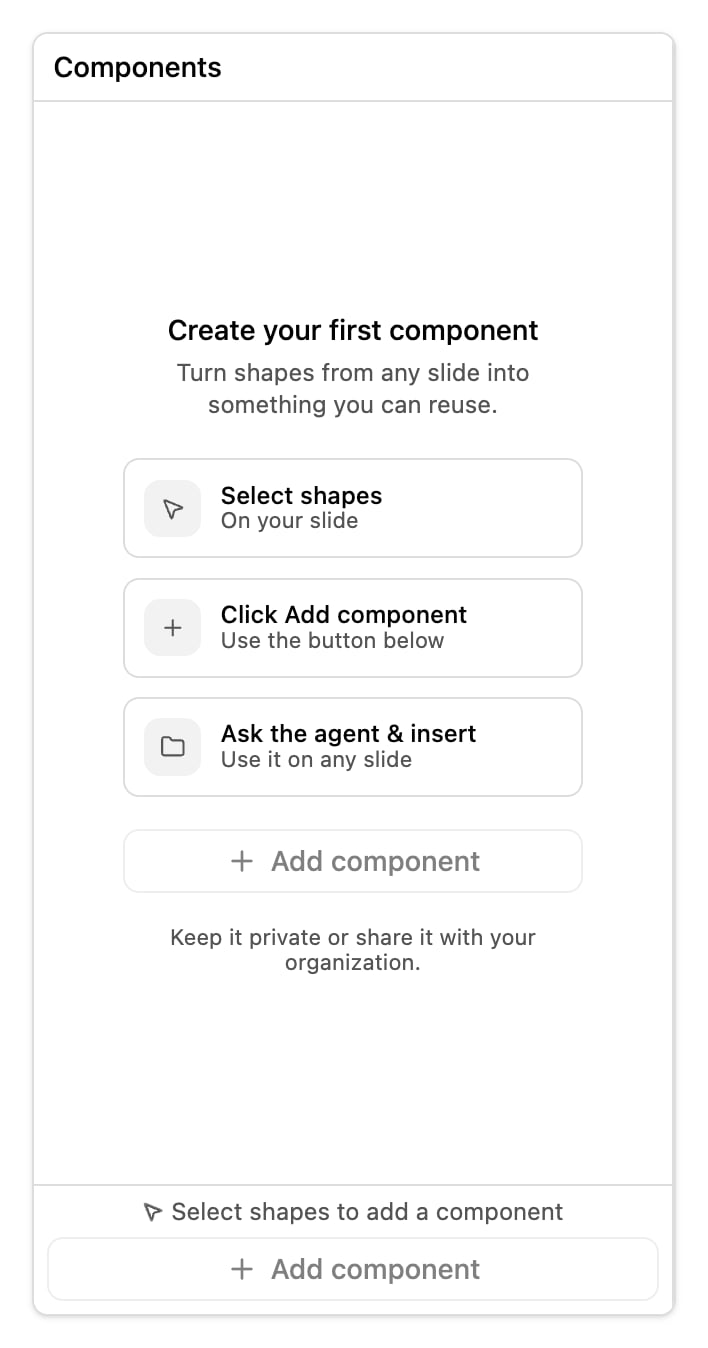 On your slide
Use the button below
Use it on any slide
## Publishing a component
On your slide
Use the button below
Use it on any slide
## Publishing a component
 Marquee-select or shift-click what you want to save. Until you do, the button reads
*"Select shapes to add a component"* and does nothing.
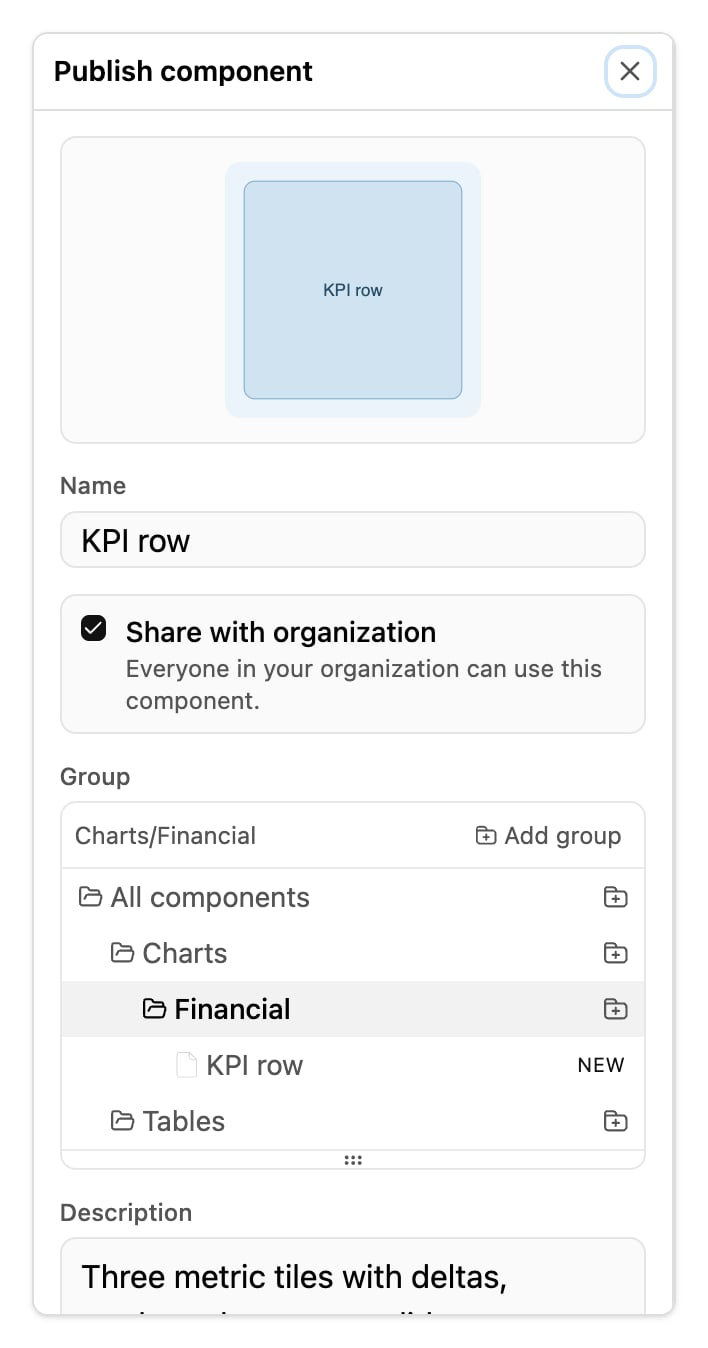
The **Publish component** drawer opens and works through *"Capturing selection…"*,
*"Waiting for preview…"*, *"Generating name…"* and *"Generating description…"*. It copies the
shapes, renders a preview, and drafts the text for you.
Rewrite the drafted **Name** and **Description** if they are vague. The agent finds a component
by what these say, so "Three-column KPI tile with icon, figure and caption" beats "Tile 2".
**Group** puts it in a folder.
Admins get a toggle: **Share with organization** (*"Everyone in your organization can use this
component."*) or **Private component** (*"This component isn't shared with anyone."*). Members
see the private note with no toggle.
It appears in the grid straight away, and under **Recent**.
Open the drawer from inside **My components** and it publishes privately. Open it from anywhere
else as an admin and it defaults to the organization library. Check the toggle before saving.
## Groups
Groups are folders inside a library. **Add group** creates one; **New group in Charts** nests one
inside another; **Rename group** renames it; **Move component to Charts** moves a card.
* Group names cannot contain slashes. You get *"Enter a group name without slashes"*.
* A second group with the same name in the same place is rejected:
*"A group with this name already exists here."*
* **Resize groups** changes how many rows a group shows (*"3 rows"*).
Three views sit alongside your folders:
| View | Shows |
| ------------------ | ------------------------------------------------------------------------------------------------------------------ |
| **Recent** | The five components you used last, on the tab's home view. Before you have used any, the five newest. Collapsible. |
| **All components** | Everything in the library, folders flattened. |
| **Ungrouped** | Components you never put in a folder. |
## Using a component
Two ways:
* **Insert it yourself.** Click the card and it lands on the current slide. If no slide is open
you get *"Open a slide to insert components."*
* **Ask the agent for it by name.** Say "put the quarterly KPI tile on slide 4 and fill it with the
numbers from the attached file". The agent looks the component up by its name and description,
inserts it, and adapts the contents.
The second is usually what you want. The component gives the agent the shape, and your message
gives it the data.
## Deleting
Delete a card and Pretty asks *"Delete "Agenda block"?"* with *"This can't be undone."* You can
delete your own components; only an admin can delete organization components.
## When something goes wrong
| Message | What it means |
| ----------------------------------------------------------- | ---------------------------------------------------------------------------- |
| *"A component with this name already exists."* | The name is taken in that library. Pick another. |
| *"Couldn't capture the selection"* | The shapes could not be copied out of the slide. Reselect and try again. |
| *"Couldn't suggest a title — write your own"* | The drafting step failed. The publish still works; type a **Name** yourself. |
| *"Couldn't publish — try again"* | The save did not reach the server. Retry from the drawer. |
| *"Select shapes on a single slide to publish a component."* | Your selection spans more than one slide. A component comes from one slide. |
## Related
For whole slides rather than shape groups. Upload a `.pptx` and reuse its layouts.
Who can publish to the organization library, and who can only publish privately.
Marquee-select or shift-click what you want to save. Until you do, the button reads
*"Select shapes to add a component"* and does nothing.
The **Publish component** drawer opens and works through *"Capturing selection…"*,
*"Waiting for preview…"*, *"Generating name…"* and *"Generating description…"*. It copies the
shapes, renders a preview, and drafts the text for you.
Rewrite the drafted **Name** and **Description** if they are vague. The agent finds a component
by what these say, so "Three-column KPI tile with icon, figure and caption" beats "Tile 2".
**Group** puts it in a folder.
Admins get a toggle: **Share with organization** (*"Everyone in your organization can use this
component."*) or **Private component** (*"This component isn't shared with anyone."*). Members
see the private note with no toggle.
It appears in the grid straight away, and under **Recent**.
Open the drawer from inside **My components** and it publishes privately. Open it from anywhere
else as an admin and it defaults to the organization library. Check the toggle before saving.
## Groups
Groups are folders inside a library. **Add group** creates one; **New group in Charts** nests one
inside another; **Rename group** renames it; **Move component to Charts** moves a card.
* Group names cannot contain slashes. You get *"Enter a group name without slashes"*.
* A second group with the same name in the same place is rejected:
*"A group with this name already exists here."*
* **Resize groups** changes how many rows a group shows (*"3 rows"*).
Three views sit alongside your folders:
| View | Shows |
| ------------------ | ------------------------------------------------------------------------------------------------------------------ |
| **Recent** | The five components you used last, on the tab's home view. Before you have used any, the five newest. Collapsible. |
| **All components** | Everything in the library, folders flattened. |
| **Ungrouped** | Components you never put in a folder. |
## Using a component
Two ways:
* **Insert it yourself.** Click the card and it lands on the current slide. If no slide is open
you get *"Open a slide to insert components."*
* **Ask the agent for it by name.** Say "put the quarterly KPI tile on slide 4 and fill it with the
numbers from the attached file". The agent looks the component up by its name and description,
inserts it, and adapts the contents.
The second is usually what you want. The component gives the agent the shape, and your message
gives it the data.
## Deleting
Delete a card and Pretty asks *"Delete "Agenda block"?"* with *"This can't be undone."* You can
delete your own components; only an admin can delete organization components.
## When something goes wrong
| Message | What it means |
| ----------------------------------------------------------- | ---------------------------------------------------------------------------- |
| *"A component with this name already exists."* | The name is taken in that library. Pick another. |
| *"Couldn't capture the selection"* | The shapes could not be copied out of the slide. Reselect and try again. |
| *"Couldn't suggest a title — write your own"* | The drafting step failed. The publish still works; type a **Name** yourself. |
| *"Couldn't publish — try again"* | The save did not reach the server. Retry from the drawer. |
| *"Select shapes on a single slide to publish a component."* | Your selection spans more than one slide. A component comes from one slide. |
## Related
For whole slides rather than shape groups. Upload a `.pptx` and reuse its layouts.
Who can publish to the organization library, and who can only publish privately.