> ## Documentation Index
> Fetch the complete documentation index at: https://docs.make-pretty.com/llms.txt
> Use this file to discover all available pages before exploring further.
# Referencing your work
> Point Pretty at shapes on the slide, attach source files, and drop assets into a message.
A prompt on its own describes what you want. A reference tells Pretty what to work *from*. There
are three ways to give it one.
## 1. Point at the slide
Select shapes in PowerPoint (a text box, a group, a whole slide's worth) and a badge appears
above the composer showing what you have picked: *Slide 4 | 3 Items* for shapes on one slide,
*Slide 4* for the slide itself, *2 slides* for a multi-slide selection.
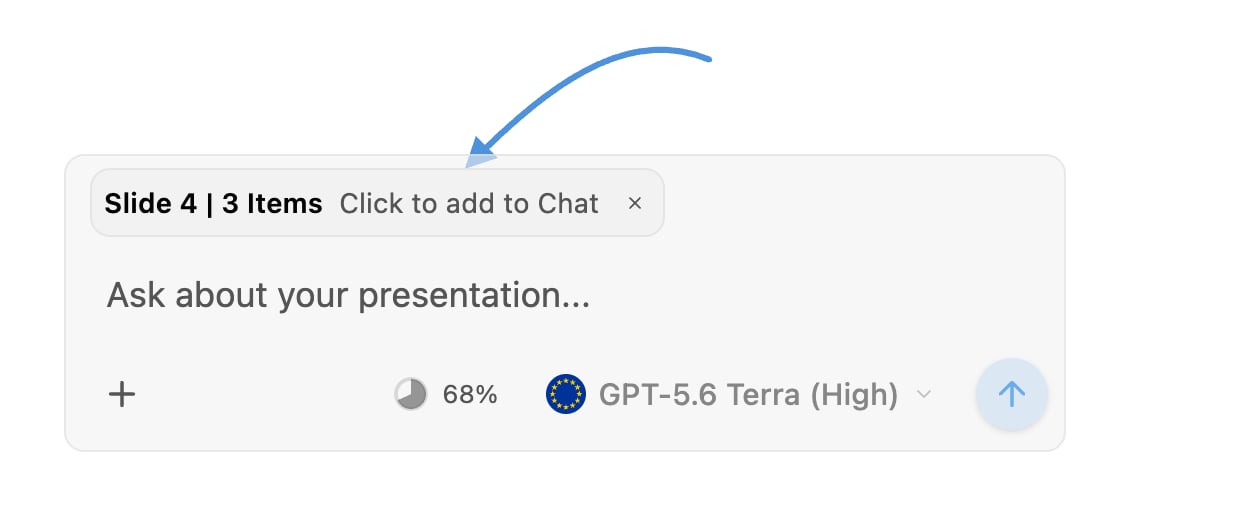 Selecting first is the cheapest way to be precise. "Make these tighter" with three shapes
selected beats a paragraph describing which three shapes you meant.
The selection is read fresh each time you send, so you can reselect between messages and keep
working without re-explaining.
## 2. Attach files
Click **+** in the composer (*"Add files"*) or use **Upload files**. You can also drag files
straight onto the pane; it lights up with *"Drop to reference in chat"*.
Selecting first is the cheapest way to be precise. "Make these tighter" with three shapes
selected beats a paragraph describing which three shapes you meant.
The selection is read fresh each time you send, so you can reselect between messages and keep
working without re-explaining.
## 2. Attach files
Click **+** in the composer (*"Add files"*) or use **Upload files**. You can also drag files
straight onto the pane; it lights up with *"Drop to reference in chat"*.
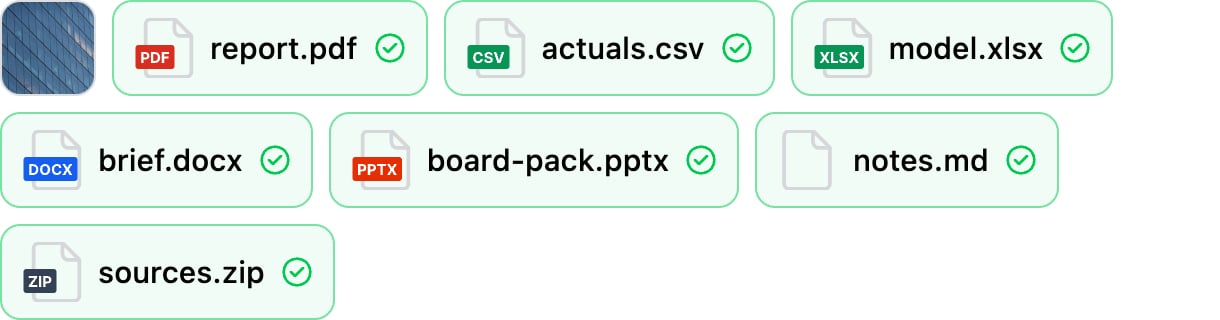 The picker accepts images, `.pdf`, `.csv`, `.xls`, `.xlsx`, `.doc`, `.docx`, `.ppt`, `.pptx`,
`.md`, `.markdown` and `.zip`.
How Pretty reads what you give it:
| You attach | Pretty reads it as |
| ------------------------------------------------------ | ------------------------------------------------------------------------------------ |
| Text (`.md`, `.markdown`, `.csv` and other plain text) | Numbered lines, the way `cat -n` prints a file, so it can quote a specific line back |
| `.docx` | Text extracted from the document, returned through the same numbered result |
| Images (`.png`, `.jpg`, `.jpeg`, `.gif`, `.webp`) | A viewable image. The model looks at it directly |
| `.pdf` | A viewable document of text, figures and scanned pages, read visually |
A `.pptx` is not read as a file. To make a deck's slides reusable, upload it as a
[slide pool](/slide-pools/overview) instead. That turns its slides into a searchable library
Pretty can pull layouts from.
Long files are read in windows rather than all at once, so pointing at the part you care about
("the pricing table on page 4") gets you a better answer than "read this".
## 3. Drop in assets
Some references are objects rather than files, and they arrive in the composer as badges.
Search icons, logos, maps and photos in the **Assets** tab and click **Add to chat**. The
badge names the exact icon or company, so Pretty places the one you picked rather than
searching again.
A slide in a pool has **Add to chat** too. Referencing a layout is how you say "build it like
this one" without describing the layout.
You can also drag an icon or a logo out of the **Assets** tab and drop it onto the composer, and
drag a file from the workspace tree to reference the file or the folder.
The picker accepts images, `.pdf`, `.csv`, `.xls`, `.xlsx`, `.doc`, `.docx`, `.ppt`, `.pptx`,
`.md`, `.markdown` and `.zip`.
How Pretty reads what you give it:
| You attach | Pretty reads it as |
| ------------------------------------------------------ | ------------------------------------------------------------------------------------ |
| Text (`.md`, `.markdown`, `.csv` and other plain text) | Numbered lines, the way `cat -n` prints a file, so it can quote a specific line back |
| `.docx` | Text extracted from the document, returned through the same numbered result |
| Images (`.png`, `.jpg`, `.jpeg`, `.gif`, `.webp`) | A viewable image. The model looks at it directly |
| `.pdf` | A viewable document of text, figures and scanned pages, read visually |
A `.pptx` is not read as a file. To make a deck's slides reusable, upload it as a
[slide pool](/slide-pools/overview) instead. That turns its slides into a searchable library
Pretty can pull layouts from.
Long files are read in windows rather than all at once, so pointing at the part you care about
("the pricing table on page 4") gets you a better answer than "read this".
## 3. Drop in assets
Some references are objects rather than files, and they arrive in the composer as badges.
Search icons, logos, maps and photos in the **Assets** tab and click **Add to chat**. The
badge names the exact icon or company, so Pretty places the one you picked rather than
searching again.
A slide in a pool has **Add to chat** too. Referencing a layout is how you say "build it like
this one" without describing the layout.
You can also drag an icon or a logo out of the **Assets** tab and drop it onto the composer, and
drag a file from the workspace tree to reference the file or the folder.