> ## Documentation Index
> Fetch the complete documentation index at: https://docs.make-pretty.com/llms.txt
> Use this file to discover all available pages before exploring further.
# Chatting with Pretty
> The Chat tab is where you work: how the composer is laid out, what a turn looks like, and what the step rows are telling you.
The **Chat** tab is the main working surface. You describe what you want, Pretty works through it in
front of you, and slides appear in the deck you have open.
## The composer
The box at the bottom of the pane. The placeholder reads *"Ask about your presentation..."*.
Type `/` instead and it switches to *"Type / for skills"*, the slash menu of your
[skills](/skills/overview).
 Along the bottom edge of the composer:
| Control | What it does |
| ---------------- | ----------------------------------------------------------------------------------------------------------------- |
| **+** | *"Add files"*. Attach documents, images or PDFs. See [Referencing your work](/chat/references). |
| Context dial | How full the chat's context is. Hover it for *"\~42% context used"*. See [Context and compaction](/chat/context). |
| **Edit** | The chat mode. In the add-in there is one (see below). |
| **Select model** | Which model runs this chat. See [Choosing a model](/chat/models). |
| Send | Sends the message. While a turn is running it becomes a stop button. |
If you select shapes on the slide before typing, a badge appears above the composer, something
like *Slide 4 | 3 Items*. Click it to point your message at exactly those shapes.
## What a turn looks like
Press Enter. Send again while Pretty is still working and the new message is held as
*"Queued"* until the turn finishes.
A stack of step rows appears: *"Planning steps"*, *"Find icon"*, *"PowerPoint"*,
*"Snapshot"*, *"Reviewing design"*. Rows arrive as the work happens.
Under a **PowerPoint** row you get a line per slide touched: *Inserted slide*, *Edited slide*,
*Moved slide*, *Deleted slide*, *Duplicated slide*. Click one to jump to that slide.
A written answer, then *"How good was this answer?"*. Rating it is optional and takes a
second. See [Managing chats](/chat/managing-chats).
## Reading the step rows
Along the bottom edge of the composer:
| Control | What it does |
| ---------------- | ----------------------------------------------------------------------------------------------------------------- |
| **+** | *"Add files"*. Attach documents, images or PDFs. See [Referencing your work](/chat/references). |
| Context dial | How full the chat's context is. Hover it for *"\~42% context used"*. See [Context and compaction](/chat/context). |
| **Edit** | The chat mode. In the add-in there is one (see below). |
| **Select model** | Which model runs this chat. See [Choosing a model](/chat/models). |
| Send | Sends the message. While a turn is running it becomes a stop button. |
If you select shapes on the slide before typing, a badge appears above the composer, something
like *Slide 4 | 3 Items*. Click it to point your message at exactly those shapes.
## What a turn looks like
Press Enter. Send again while Pretty is still working and the new message is held as
*"Queued"* until the turn finishes.
A stack of step rows appears: *"Planning steps"*, *"Find icon"*, *"PowerPoint"*,
*"Snapshot"*, *"Reviewing design"*. Rows arrive as the work happens.
Under a **PowerPoint** row you get a line per slide touched: *Inserted slide*, *Edited slide*,
*Moved slide*, *Deleted slide*, *Duplicated slide*. Click one to jump to that slide.
A written answer, then *"How good was this answer?"*. Rating it is optional and takes a
second. See [Managing chats](/chat/managing-chats).
## Reading the step rows
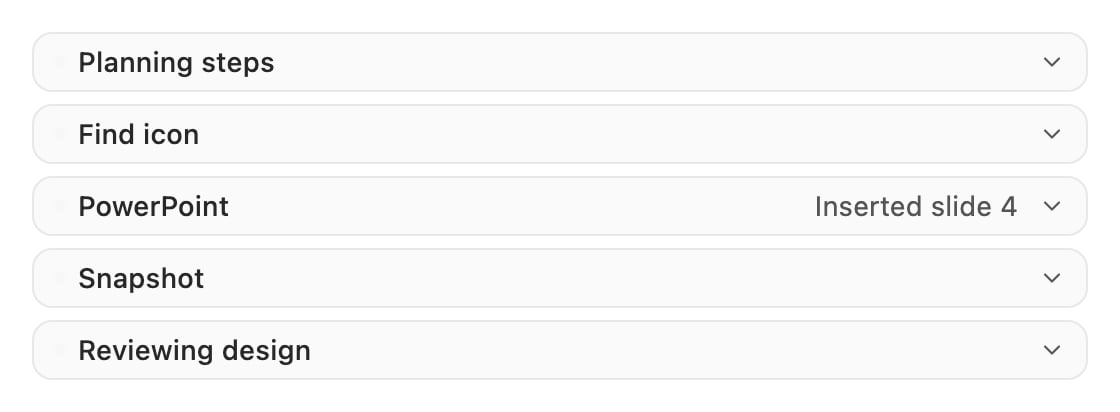 Each row is Pretty narrating one piece of work. A running row reads *"Running Snapshot…"*, and a
row that is part of a longer script shows *"Step 3/7"*. Click any row to expand it and see the
arguments it used and the output it got back.
Each row is Pretty narrating one piece of work. A running row reads *"Running Snapshot…"*, and a
row that is part of a longer script shows *"Step 3/7"*. Click any row to expand it and see the
arguments it used and the output it got back.
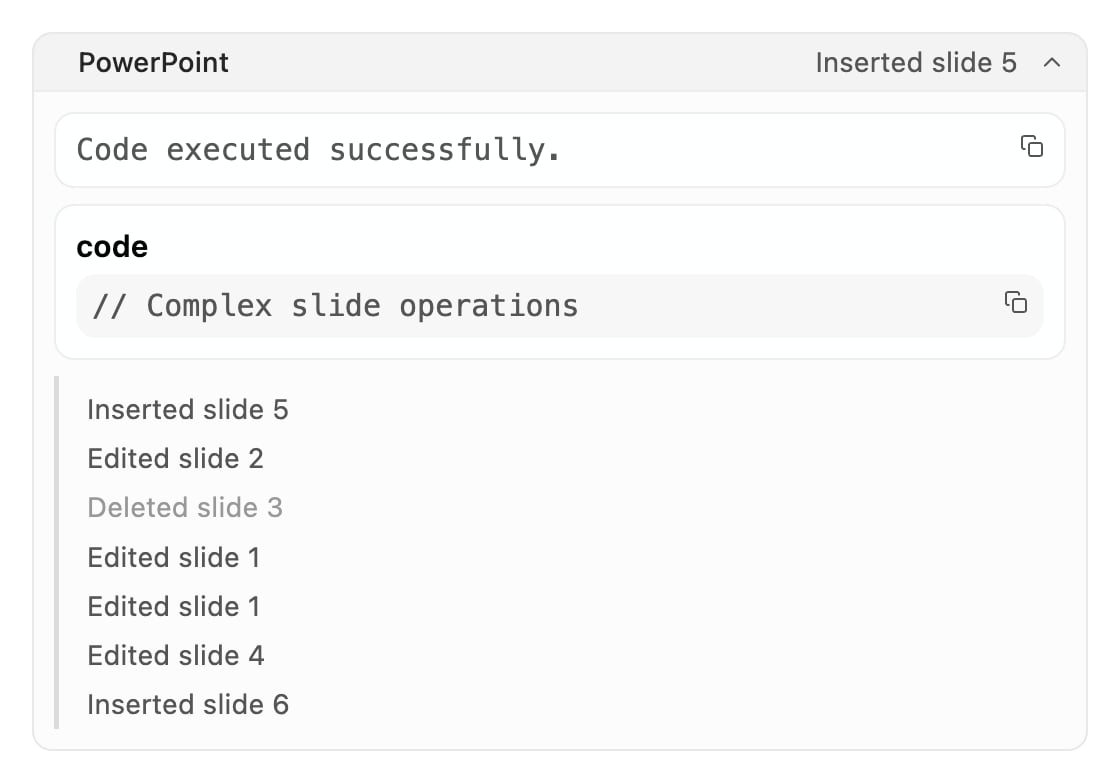 Expanded rows carry copy buttons where they help: **Copy output**, **Copy hints**,
**Copy error**. A *"Hints"* block is a geometry or overflow notice Pretty picked up and worked
around, not a failure.
Every row label is plain language chosen for you, not the internal tool name. The full list,
and what each one does, is in the [tool reference](/help/tools).
Three rows to recognise on sight:
| Row | What it is |
| -------------- | ---------------------------------------------------------------------------------------------------------- |
| **PowerPoint** | Pretty writing to your deck. If the write fails, it rolls back rather than leaving the slide half-changed. |
| **Snapshot** | Pretty rendering the slide to a picture so it can look at its own work. |
| **Asking you** | A clarifying question with two to four choices, and an **Other** box. Nothing moves until you answer. |
## Undoing a slide
Hover a slide line under a **PowerPoint** row and a revert arrow appears, titled
*"Revert to previous version"*. It opens *"Revert slide?"*, which re-inserts the version of that
slide from before the change. Once a checkpoint has aged out, the arrow greys out and reads
*"Checkpoint no longer available"*.
## Edit mode and Admin mode
The composer's mode picker shows **Edit** in the add-in. Edit mode is the only one with the tools
that write shapes to your deck and review the result.
**Admin** is a different assistant. It edits the shared workspace configuration (org skills and
asset libraries) rather than slides, and workspace admins reach it from the web editor.
## Where to go next
What to say, what to leave out, and how to scope a request.
Selections, attachments and asset badges.
The picker, the capability marks, and the EU badge.
Parallel chats, duplicating, editing a message, feedback.
Expanded rows carry copy buttons where they help: **Copy output**, **Copy hints**,
**Copy error**. A *"Hints"* block is a geometry or overflow notice Pretty picked up and worked
around, not a failure.
Every row label is plain language chosen for you, not the internal tool name. The full list,
and what each one does, is in the [tool reference](/help/tools).
Three rows to recognise on sight:
| Row | What it is |
| -------------- | ---------------------------------------------------------------------------------------------------------- |
| **PowerPoint** | Pretty writing to your deck. If the write fails, it rolls back rather than leaving the slide half-changed. |
| **Snapshot** | Pretty rendering the slide to a picture so it can look at its own work. |
| **Asking you** | A clarifying question with two to four choices, and an **Other** box. Nothing moves until you answer. |
## Undoing a slide
Hover a slide line under a **PowerPoint** row and a revert arrow appears, titled
*"Revert to previous version"*. It opens *"Revert slide?"*, which re-inserts the version of that
slide from before the change. Once a checkpoint has aged out, the arrow greys out and reads
*"Checkpoint no longer available"*.
## Edit mode and Admin mode
The composer's mode picker shows **Edit** in the add-in. Edit mode is the only one with the tools
that write shapes to your deck and review the result.
**Admin** is a different assistant. It edits the shared workspace configuration (org skills and
asset libraries) rather than slides, and workspace admins reach it from the web editor.
## Where to go next
What to say, what to leave out, and how to scope a request.
Selections, attachments and asset badges.
The picker, the capability marks, and the EU badge.
Parallel chats, duplicating, editing a message, feedback.