> ## Documentation Index
> Fetch the complete documentation index at: https://docs.make-pretty.com/llms.txt
> Use this file to discover all available pages before exploring further.
# Logos
> Find brand-accurate company logos, insert them on your master, and swap one for another in place.
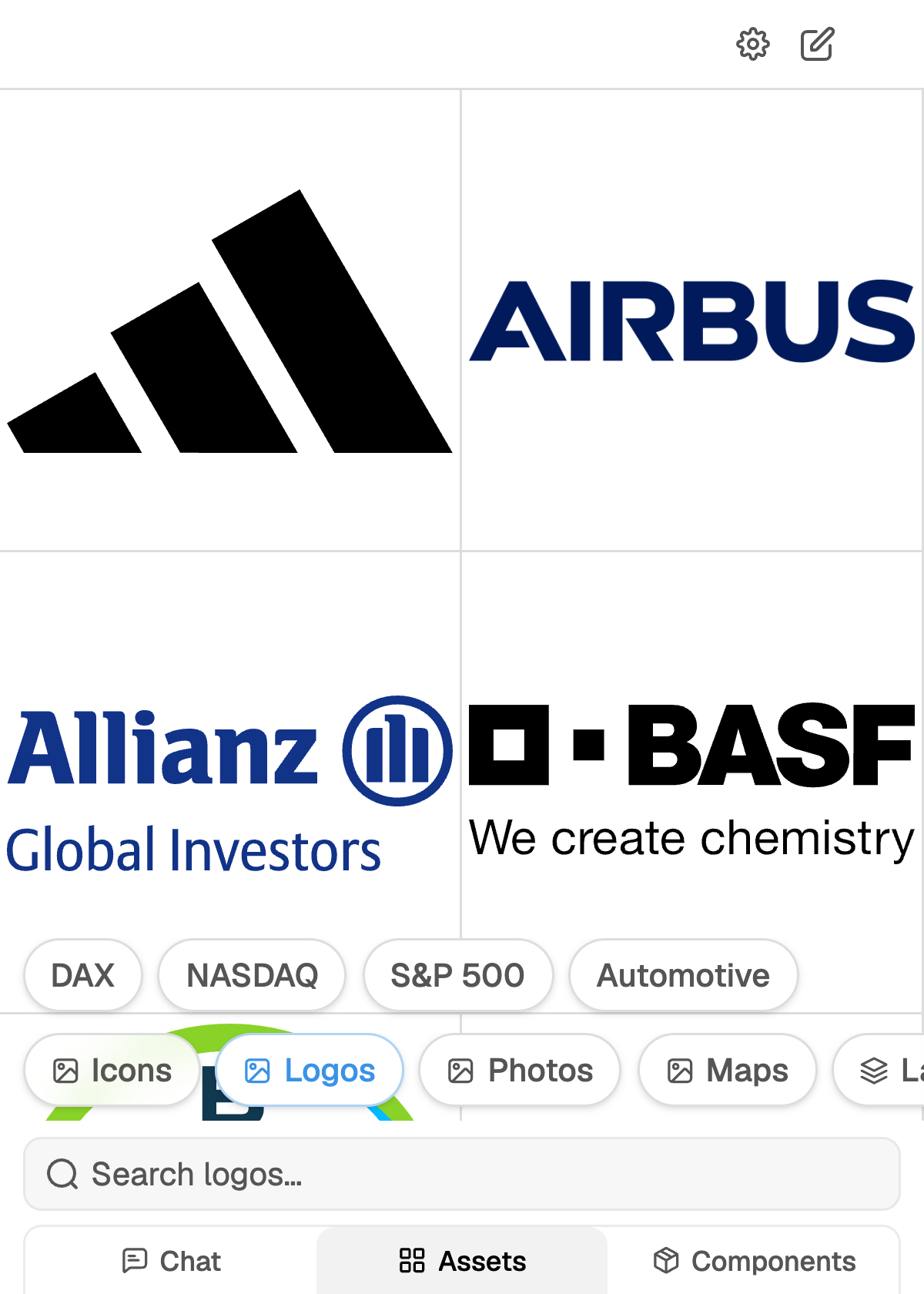
Open the **Assets** tab and pick **Logos**. Type a company name or a domain into `Search logos…`.
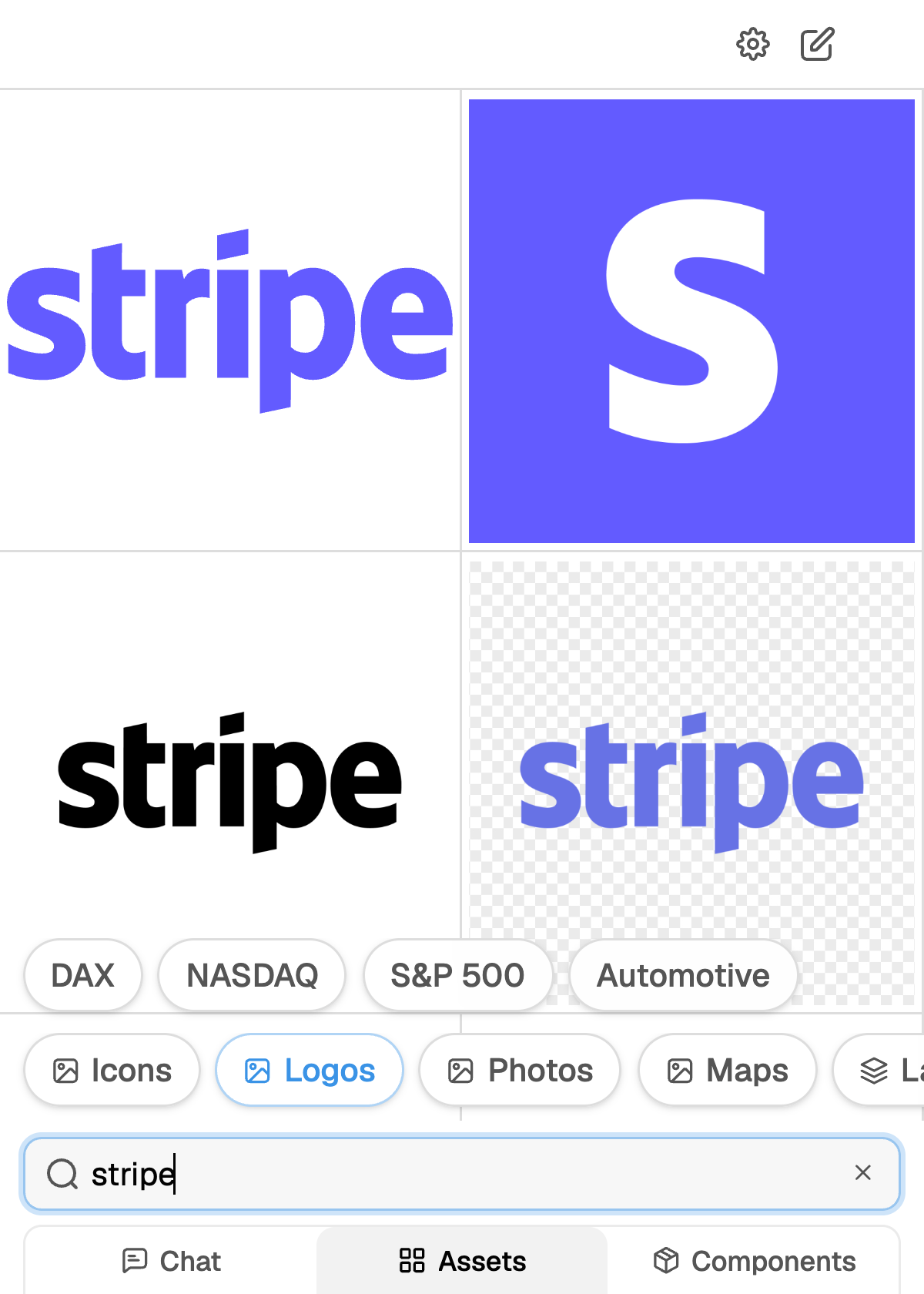
`Stripe`, `stripe.com`, `OMMAX` and `bmw.de` all work, and fuzzy matching handles the rest. With the
box empty, the tab shows browsable galleries of well-known brands you can pick from directly.
The library covers public and private companies, in light, dark and mono forms. Logos insert as
brand-coloured vectors placed on your master.
 ## Inserting
* **Add to chat** hands the logo to the agent for your next message.
* **Add to presentation** drops it on the current slide.
## Asking the agent instead
Name the companies in your message and the agent runs a **Find logo** step. Because a language model
cannot see images, the step does the looking for you: it runs an image search for the brand, then a
vision model inspects the top candidates and returns the single best one.
You can steer which *form* you get, in plain language, because the step accepts a free-text variant:
| Ask for | You get |
| -------------------------------- | ---------------------------------------------------------------- |
| "symbol only" | The mark without the name, good for tight logo grids and badges. |
| "wordmark with the brand name" | The name as styled text, good for table rows and lists. |
| "full lockup" | Symbol and name together, good for a title or hero slide. |
| "monochrome white" | A specific colour treatment, overriding the default choice. |
| "transparent, no background box" | A version without a baked-in white box behind it. |
On a dark or coloured background, ask for a transparent version up front. Some brands only publish
a logo with the background baked in, and stripping it afterwards on the slide never looks clean.
## Switch Logo
Select a logo that Pretty inserted and a fourth tab, **Switch Logo**, appears at the bottom of the
pane. It opens the logo library already seeded with the term the logo was inserted with, so the
brand you are replacing is right there.
It has to be a logo Pretty placed. The tab does not appear for pictures you pasted in yourself.
Search for the replacement company, or pick a different variant of the same one.
The new logo replaces the selected shape in place, fitted to the frame that was already there.
You are returned to **Chat**.
Switching library while a swap is armed (picking **Icons**, say) leaves swap mode and puts you
back in the ordinary **Assets** tab.
Because the swap reuses the existing frame, a row of client logos keeps its alignment and sizing
when you change one of them.
## When the wrong logo comes back
Several companies share a name, and some brands publish more variants than they use. Three fixes,
in order of effort:
Use the domain instead of the name (`acme.de` rather than `Acme`), or add the industry or
country to the request. The search matches domains directly.
If the brand is right but the form is wrong, say which form you need: symbol only, wordmark,
full lockup, monochrome, transparent. Re-asking with a variant re-runs the picker against the
same brand.
Open **Assets → Logos**, search the brand yourself, and pick the result you want. If a logo is
already on the slide, select it first and use **Switch Logo** so the replacement lands in the
same frame.
## Inserting
* **Add to chat** hands the logo to the agent for your next message.
* **Add to presentation** drops it on the current slide.
## Asking the agent instead
Name the companies in your message and the agent runs a **Find logo** step. Because a language model
cannot see images, the step does the looking for you: it runs an image search for the brand, then a
vision model inspects the top candidates and returns the single best one.
You can steer which *form* you get, in plain language, because the step accepts a free-text variant:
| Ask for | You get |
| -------------------------------- | ---------------------------------------------------------------- |
| "symbol only" | The mark without the name, good for tight logo grids and badges. |
| "wordmark with the brand name" | The name as styled text, good for table rows and lists. |
| "full lockup" | Symbol and name together, good for a title or hero slide. |
| "monochrome white" | A specific colour treatment, overriding the default choice. |
| "transparent, no background box" | A version without a baked-in white box behind it. |
On a dark or coloured background, ask for a transparent version up front. Some brands only publish
a logo with the background baked in, and stripping it afterwards on the slide never looks clean.
## Switch Logo
Select a logo that Pretty inserted and a fourth tab, **Switch Logo**, appears at the bottom of the
pane. It opens the logo library already seeded with the term the logo was inserted with, so the
brand you are replacing is right there.
It has to be a logo Pretty placed. The tab does not appear for pictures you pasted in yourself.
Search for the replacement company, or pick a different variant of the same one.
The new logo replaces the selected shape in place, fitted to the frame that was already there.
You are returned to **Chat**.
Switching library while a swap is armed (picking **Icons**, say) leaves swap mode and puts you
back in the ordinary **Assets** tab.
Because the swap reuses the existing frame, a row of client logos keeps its alignment and sizing
when you change one of them.
## When the wrong logo comes back
Several companies share a name, and some brands publish more variants than they use. Three fixes,
in order of effort:
Use the domain instead of the name (`acme.de` rather than `Acme`), or add the industry or
country to the request. The search matches domains directly.
If the brand is right but the form is wrong, say which form you need: symbol only, wordmark,
full lockup, monochrome, transparent. Re-asking with a variant re-runs the picker against the
same brand.
Open **Assets → Logos**, search the brand yourself, and pick the result you want. If a logo is
already on the slide, select it first and use **Switch Logo** so the replacement lands in the
same frame.