> ## Documentation Index
> Fetch the complete documentation index at: https://docs.make-pretty.com/llms.txt
> Use this file to discover all available pages before exploring further.
# Members and roles
> The Owner, Admin and Member roles, how to invite teammates, and why an invitation has to be accepted with the invited address.
Everyone who works in your workspace holds one of three roles. Owners and Admins are both org
admins. They manage people and change org-wide settings. Members use what the admins set up.
## What each role can do
 | | Owner | Admin | Member |
| ------------------------------------------------------ | ----- | ----- | ------ |
| Use chat, assets, components, slide pools | Yes | Yes | Yes |
| Create personal skills and private components | Yes | Yes | Yes |
| Invite teammates and change roles | Yes | Yes | No |
| Remove members | Yes | Yes | No |
| Rename the workspace | Yes | Yes | No |
| Upload and remove [brand fonts](/admin/brand-fonts) | Yes | Yes | No |
| Set [model providers](/admin/model-providers) | Yes | Yes | No |
| Write custom instructions for the agent | Yes | Yes | No |
| Edit organization skills and publish shared components | Yes | Yes | No |
An Owner cannot be removed or demoted from the member list, and cannot leave the workspace.
Everyone else gets a **Leave** action on their own row.
## Changing someone's role
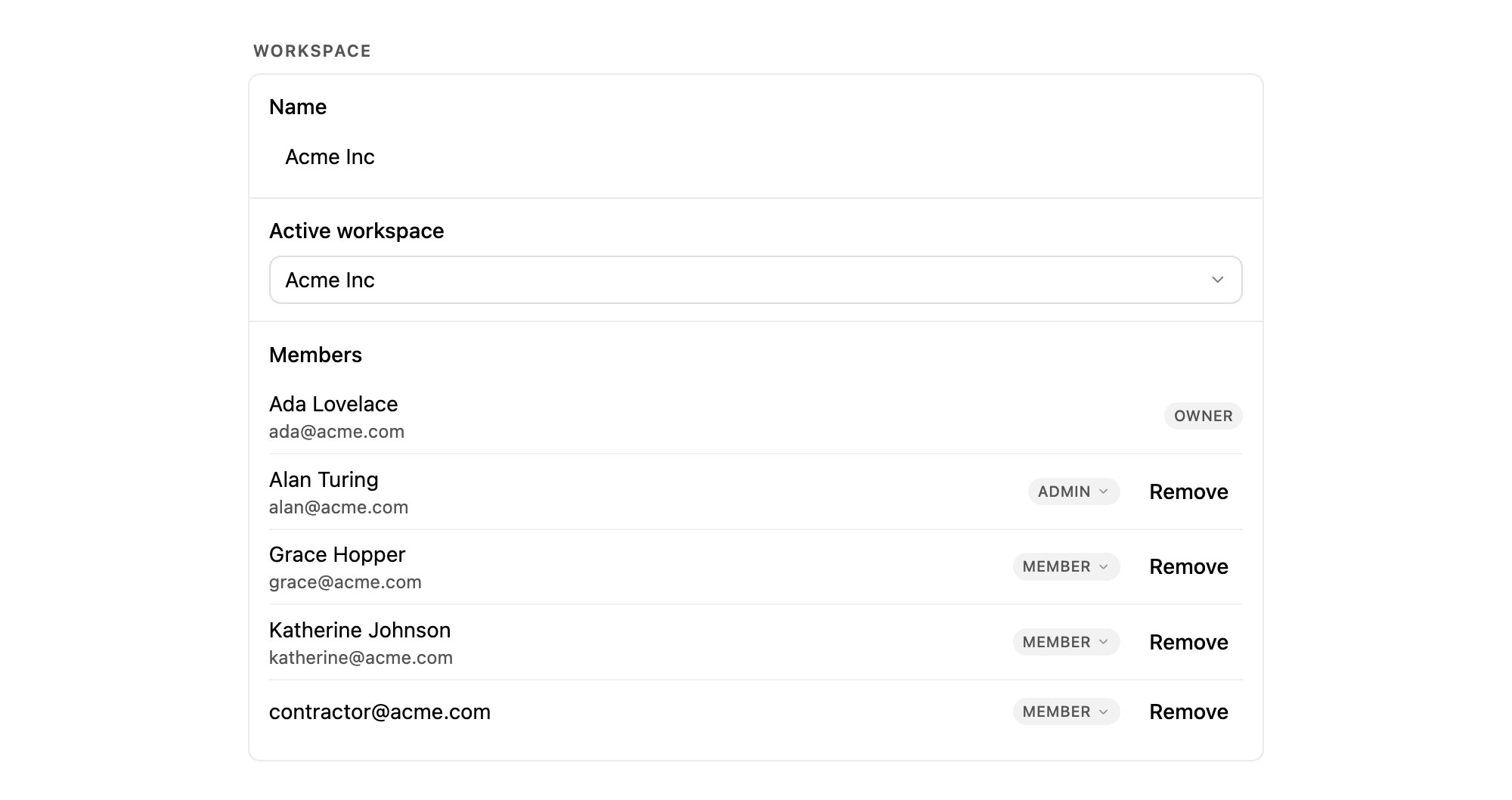
In the member list, click the role badge next to a person and pick the new role. A confirmation
follows: *"Change role?"*, then *"Sam Okafor will change from Admin to Member."* So a misclick on
a crowded list costs nothing.
The dropdown offers **Member** and **Admin** only. There is no **Owner** entry, because
transferring ownership is a separate flow rather than a role change. Contact
[support@make-pretty.com](mailto:support@make-pretty.com) if ownership needs to move.
## Inviting a teammate
The section only appears for Owners and Admins. If you do not see it, either you are a Member
or in-app invites are switched off for your workspace, in which case ask support to add
people for you.
The field is placeholdered `teammate@company.com`. One address per invitation.
Click **Send invitation**. The button reads *"Sending..."*, then the confirmation
*"Invitation sent to [teammate@company.com](mailto:teammate@company.com)."* appears underneath.
Invitations sent from the task pane go out as **Member**. To invite someone as an Admin, or to
invite several people at once, use **Edit Workspace Settings** in the **Workspace** section: it
has a role dropdown next to the address field, and an **Invite several at once** dialog that
accepts a list separated by commas, spaces or new lines.
## Pending invitations
| | Owner | Admin | Member |
| ------------------------------------------------------ | ----- | ----- | ------ |
| Use chat, assets, components, slide pools | Yes | Yes | Yes |
| Create personal skills and private components | Yes | Yes | Yes |
| Invite teammates and change roles | Yes | Yes | No |
| Remove members | Yes | Yes | No |
| Rename the workspace | Yes | Yes | No |
| Upload and remove [brand fonts](/admin/brand-fonts) | Yes | Yes | No |
| Set [model providers](/admin/model-providers) | Yes | Yes | No |
| Write custom instructions for the agent | Yes | Yes | No |
| Edit organization skills and publish shared components | Yes | Yes | No |
An Owner cannot be removed or demoted from the member list, and cannot leave the workspace.
Everyone else gets a **Leave** action on their own row.
## Changing someone's role
In the member list, click the role badge next to a person and pick the new role. A confirmation
follows: *"Change role?"*, then *"Sam Okafor will change from Admin to Member."* So a misclick on
a crowded list costs nothing.
The dropdown offers **Member** and **Admin** only. There is no **Owner** entry, because
transferring ownership is a separate flow rather than a role change. Contact
[support@make-pretty.com](mailto:support@make-pretty.com) if ownership needs to move.
## Inviting a teammate
The section only appears for Owners and Admins. If you do not see it, either you are a Member
or in-app invites are switched off for your workspace, in which case ask support to add
people for you.
The field is placeholdered `teammate@company.com`. One address per invitation.
Click **Send invitation**. The button reads *"Sending..."*, then the confirmation
*"Invitation sent to [teammate@company.com](mailto:teammate@company.com)."* appears underneath.
Invitations sent from the task pane go out as **Member**. To invite someone as an Admin, or to
invite several people at once, use **Edit Workspace Settings** in the **Workspace** section: it
has a role dropdown next to the address field, and an **Invite several at once** dialog that
accepts a list separated by commas, spaces or new lines.
## Pending invitations
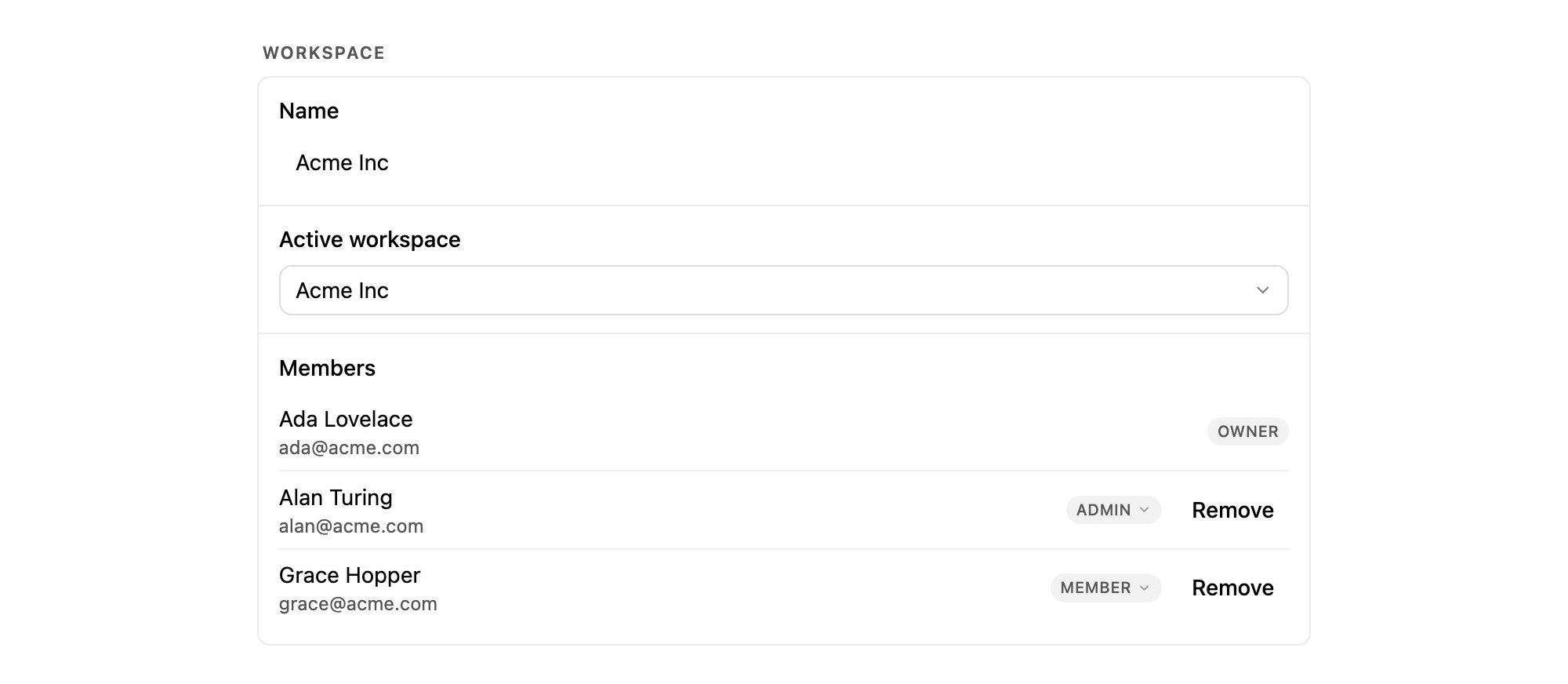 The fuller settings surface lists invitations that have been sent but not accepted, each with
its role. Two actions:
* **Revoke** withdraws the invitation. Use it when someone has left or the address was wrong.
* **Resend** appears once an invitation is marked **Expired**, and issues a fresh one to the same
address and role.
## Accepting an invitation
An invitation is bound to the address it was sent to. The invitee has to sign in as that address
to accept it.
If they are already signed in as somebody else, they land on *"Wrong account"*:
*"This invitation was sent to a different email than the one you're signed in with."* The fix
is to sign out and reopen the link with the invited address, not to ask for a new invitation.
*"Ask for a new invite."* Revoke the old one and send a fresh invitation, or use **Resend**.
Check they accepted into the right workspace. If they belong to more than one, the
**Active workspace** switcher in **Settings → Workspace** decides which one they are looking
at.
Invitations are issued per surface. An invitation sent from the add-in lands the person on
add-in setup, so they install the add-in and sign in rather than arriving somewhere they were
not expecting. See [Install the add-in](/get-started/install) for what they will walk through.
The fuller settings surface lists invitations that have been sent but not accepted, each with
its role. Two actions:
* **Revoke** withdraws the invitation. Use it when someone has left or the address was wrong.
* **Resend** appears once an invitation is marked **Expired**, and issues a fresh one to the same
address and role.
## Accepting an invitation
An invitation is bound to the address it was sent to. The invitee has to sign in as that address
to accept it.
If they are already signed in as somebody else, they land on *"Wrong account"*:
*"This invitation was sent to a different email than the one you're signed in with."* The fix
is to sign out and reopen the link with the invited address, not to ask for a new invitation.
*"Ask for a new invite."* Revoke the old one and send a fresh invitation, or use **Resend**.
Check they accepted into the right workspace. If they belong to more than one, the
**Active workspace** switcher in **Settings → Workspace** decides which one they are looking
at.
Invitations are issued per surface. An invitation sent from the add-in lands the person on
add-in setup, so they install the add-in and sign in rather than arriving somewhere they were
not expecting. See [Install the add-in](/get-started/install) for what they will walk through.